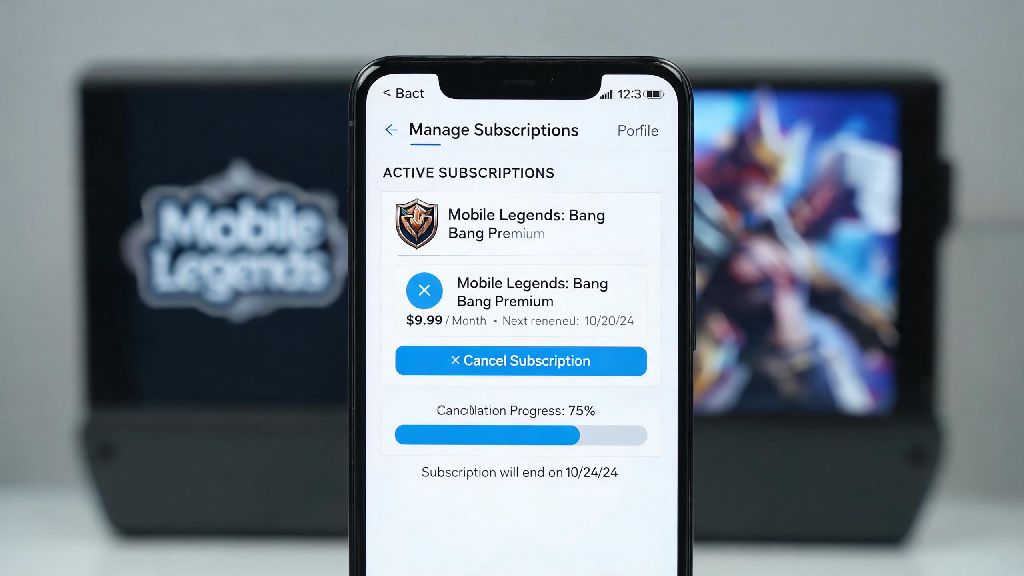
If you’ve ever signed up for a Mobile Legends weekly or monthly membership to get extra skins, battle points, or weekly rewards, only to realize you don’t use the perks enough to justify the cost, you’re not alone. Last month, my cousin reached out panicking because he got charged $12.99 for a subscription he forgot he signed up for three months prior, after he stopped playing the game entirely. That’s why I put together this straightforward guide for how to cancel mobile legends subscription, no matter what platform you used to sign up.
How to Cancel Mobile Legends Subscription on Android and iOS Devices
If you signed up for the subscription directly in the game using your app store account, these steps will work for you. If you used a different payment method, we’ll cover that in the next section. The whole process takes less than two minutes, and you don’t need to contact game support to complete it.
For Android users who bought their subscription through the Google Play Store, start by opening the Google Play Store app on your phone, and tap the profile icon in the top right corner. From the dropdown menu, select “Payments & subscriptions” then tap “Subscriptions”. You’ll see a full list of all active and expired subscriptions linked to your Google account. Scroll until you find the Mobile Legends entry, tap it, then select “Cancel subscription”. You’ll be asked to select a reason for canceling, you can pick any option or select “Other” if you don’t want to share, then confirm your choice. You can cancel your subscription up to 24 hours before the next billing cycle to avoid being charged, so don’t wait until the last minute if you know you don’t want to renew.
For iOS users, the process runs through your Apple ID settings instead of the App Store directly. Open the Settings app on your iPhone or iPad, then tap your name at the top of the screen. Scroll down until you see “Subscriptions” and tap that. You’ll see all subscriptions linked to your Apple ID, find Mobile Legends, tap it, then select “Cancel Subscription”. If you don’t see a cancel button, that means the subscription has already been canceled and won’t renew. Keep in mind that if you’re on a free trial, canceling before the trial ends will stop you from being charged once the trial period is over.
What to Do If You Purchased Your Subscription Through a Third-Party Platform
A lot of Mobile Legends players, especially in regions where app store payments aren’t as accessible, use third-party platforms to buy subscriptions. These can include carrier billing, e-wallets, or even third-party resellers that offer discounted memberships. The catch is you can’t cancel these subscriptions through the Google Play Store or Apple Settings, you have to go directly through the platform you used to sign up. Always keep screenshots of your subscription confirmation and cancellation request for future disputes, especially if you’re working with a less established reseller that might not have reliable support.
Some players also use shared accounts to buy subscriptions at a discount. If that’s the case for you, you’ll need to ask the account owner to cancel the subscription on their end, or remove your payment method from their account to stop future charges.
Common Issues You Might Face When Canceling Your MLBB Subscription
Even if you follow the steps exactly, you might run into a few snags when trying to end your MLBB auto-renewal. The most common issue I hear about is people not seeing their Mobile Legends subscription listed in their app store subscription list. If you can’t find your MLBB subscription in your app store account, you likely used a different payment account when you signed up. For example, one of my friends used his work Google account to sign up for a MLBB subscription once, and spent an hour looking for it on his personal account before he realized his mistake. Try logging into other Google or Apple IDs you own, or check your email for subscription confirmation messages to see which account was used.
Another common issue is getting charged even after you canceled. This almost always happens because you canceled less than 24 hours before your next billing date. App store policies require 24 hours notice for cancellation, so if you cancel 12 hours before your renewal date, you’ll still be charged for the next cycle. Subscriptions already processed for the current billing period can’t be refunded in most cases, but you can reach out to support if you have a valid reason, like being charged for a subscription you canceled weeks prior.
If you see a charge for a subscription you never signed up for, that’s an unauthorized charge, and you should file a dispute with your payment provider immediately. In most cases, you’ll get a full refund within 3 to 5 business days, as long as you can prove you didn’t authorize the purchase.
Tips to Avoid Unwanted Mobile Legends Subscription Charges in the Future
Once you’ve successfully canceled your subscription, there are a few simple steps you can take to make sure you never get hit with unwanted MLBB charges again. First, Uninstalling the Mobile Legends app from your device will never cancel your active subscription. I can’t tell you how many people I’ve talked to who thought deleting the app would stop charges, only to get billed the next month. Always cancel your subscription first before you delete the app if you don’t plan on coming back.
Second, set a reminder every three months to check your app store subscription list for any active subscriptions you don’t use. It only takes two minutes, and it can save you a lot of money in accidental charges. I do this every quarter, and I usually find at least one subscription I forgot I signed up for, whether it’s for a game or a streaming service.
Third, avoid buying subscriptions from untrusted third-party resellers. While the discounted prices might look tempting, many of these resellers use stolen payment methods to buy subscriptions, which can lead to your account getting banned, or unexpected charges popping up on your payment method months later. If you do use a reseller, stick to well-known platforms with clear refund and cancellation policies.
If you have kids who play Mobile Legends on your device, turn on purchase authentication for your app store account, so they can’t sign up for subscriptions without your permission. Most devices let you require a password, fingerprint, or face scan for any purchases over a certain amount, which takes 30 seconds to set up and prevents a lot of headaches later.
Knowing how to cancel mobile legends subscription quickly can save you from wasting money on perks you don’t use, or dealing with the stress of unexpected charges after you’ve stopped playing the game. The process is straightforward as long as you use the right steps for the platform you signed up with, and keeping track of your subscriptions regularly will help you avoid issues down the line. If you run into any issues that you can’t resolve on your own, you can reach out to Mobile Legends customer support through the in-game help center, or contact your payment provider’s support team for extra help.