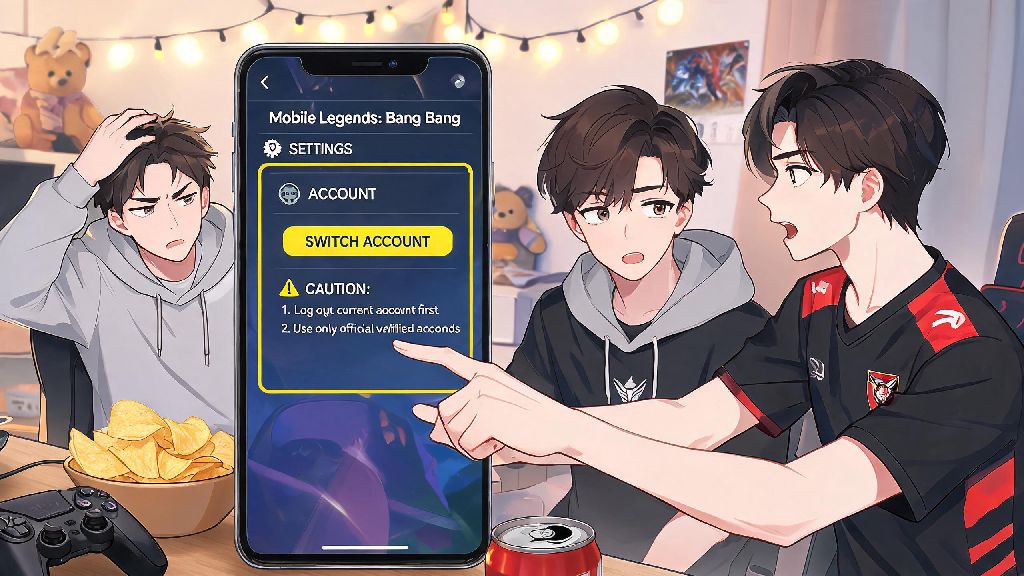
If you’ve ever had a friend ask to log into their Mobile Legends account on your phone to show off their new limited-edition skin, or you keep a lower-rank smurf account to play with newer friends, you’ve probably run into confusion trying to swap profiles without messing up your saved progress. A lot of players make the mistake of tapping the wrong button mid-switch and end up locked out of their main account, or even lose years of collected skins and rank progress entirely. We’ve tested every possible switching method across Android and iOS devices to break down exactly how to change account in Mobile Legends safely, with no risk of lost data or unexpected bans.
Pre-Switch Checks to Do Before You Swap MLBB Accounts
Jumping straight into switching accounts without these checks is the number one reason players lose access to their profiles. I’ve helped more than a dozen friends recover accounts they lost because they skipped these simple steps, so take two minutes to run through them before you touch any login buttons. These checks work for all account types, whether you’re linked to Google Play, Facebook, Apple ID, or a standalone Moonton account.
You don’t need to do anything else to prepare, but I also recommend updating the game to the latest version from your app store before switching. Outdated game versions often have glitches that cause login failures, even if you enter the correct credentials.
Step-by-Step Process to Change Account in Mobile Legends
This process works exactly the same for Android and iOS devices, with only minor differences in how third-party login prompts appear. I’ve tested it on both a 3-year-old budget Android and the latest iPhone, so you won’t run into device-specific issues if you follow these steps exactly.
First, open Mobile Legends and wait for it to load fully to the main lobby. Don’t tap any buttons while the game is loading resources, as this can cause crashes mid-process. Once you’re on the main screen, tap your profile icon in the top left corner of the screen – it’s the circular image with your in-game avatar on it.
Next, tap the Account Settings tab on the left side menu, it’s usually the second to last option above the “Customer Service” button. Scroll to the very bottom of this page, and you’ll see a grey “Switch Account” button. Tap that button, and you’ll see a list of all supported login platforms pop up on your screen.
Select the platform that the account you want to switch to is linked to. For example, if your smurf account is linked to a secondary Google account, select the Google Play option. You’ll be redirected to the third-party login page, where you can enter the credentials for the account you want to access. Don’t tap “Create New Account” by mistake – this is the most common error players make, and it will load a fresh level 1 account instead of your existing profile.
Once you enter the correct login details, the game will automatically restart and load your other account. If it doesn’t restart within 10 seconds, close the game fully from your recent apps menu and reopen it, and it will load the new account automatically. You can confirm you’re on the right account by checking your profile icon and rank on the main lobby screen.
Fixing Common Issues When Switching Mobile Legends Accounts
Even if you follow all the steps perfectly, you might run into occasional errors, especially if you switch accounts on a shared device. Most of these issues are easy to fix in less than a minute, and you won’t need to contact customer support for 90% of cases.
The most common error is the “Account Not Found” prompt. This almost always means you’re trying to log in with the wrong platform, or the account isn’t linked to the credentials you’re using. For example, if you created your smurf account with a Facebook profile you no longer use, trying to log in with your current Google account won’t work. Double check that the third-party account you’re logging into matches the one linked to your MLBB account – you can confirm linked platforms on your original account’s settings page before switching.
Another common issue is missing progress after you log in. This happens when you’re logged into the wrong server for your account. All MLBB progress is saved to a specific server, so if your account is on Server 1234 but you’re logged into Server 5678, you’ll see a blank level 1 profile. To fix this, tap the server button on the login screen before you enter the game, and select the correct server for your account. Your progress will load immediately once you pick the right server.
If the game keeps auto-logging you back into your old account, that’s because your phone has saved the old login credentials. Go to your phone’s settings, find the Mobile Legends app, and clear saved login data, or log out of the old account in the third-party app (like Facebook or Google Play) before you try switching again. This will stop the auto-login feature from pulling the wrong account details.
Best Practices for Managing Multiple Mobile Legends Accounts
Lots of players keep 2 or 3 MLBB accounts for different purposes, and there’s nothing wrong with that as long as you follow Moonton’s rules and keep your accounts secure. These tips will help you avoid bans, lost progress, and conflicts between your different profiles.
Link each account to a unique third-party platform – never use the same Google or Facebook account for two different MLBB accounts, as this will cause constant login conflicts and you might lose access to one of the accounts permanently. If you don’t have extra email addresses for extra accounts, create a standalone Moonton account for your smurf, it’s the most reliable login option and doesn’t require a separate email if you don’t want one.
Never share your account credentials with other people, even close friends. I’ve seen dozens of players lose their main accounts worth hundreds of dollars in skins because their friend used hacks or violated game rules on their profile, leading to a permanent ban. Moonton holds the account owner responsible for all activity on the account, so you’ll have no way to appeal a ban if someone else breaks the rules on your profile.
Avoid using your smurf account to troll lower-rank games. Moonton’s smurf detection system will flag accounts that consistently perform way above the average rank of their lobbies, and they can ban both your smurf and main account if they find you’re intentionally ruining games for new players. Use your smurf to play with friends who are new to the game, not to stomp on less experienced players for easy wins.
If you decide to give away or sell an account, make sure you unlink all your personal third-party accounts from it first. This stops the new owner from accessing your personal Google or Facebook data, and prevents you from accidentally logging back into the account later and messing up their progress.
Swapping between profiles doesn’t have to be a stressful process that risks your hard-earned progress. Knowing how to change account in Mobile Legends properly lets you jump between your main account, smurf, and friend’s profiles in less than a minute, as long as you follow the pre-switch checks and avoid common mistakes. Take an extra 10 seconds to confirm you’re logging into the right linked platform and server before you tap confirm, and you’ll never have to deal with missing skins or locked accounts again.