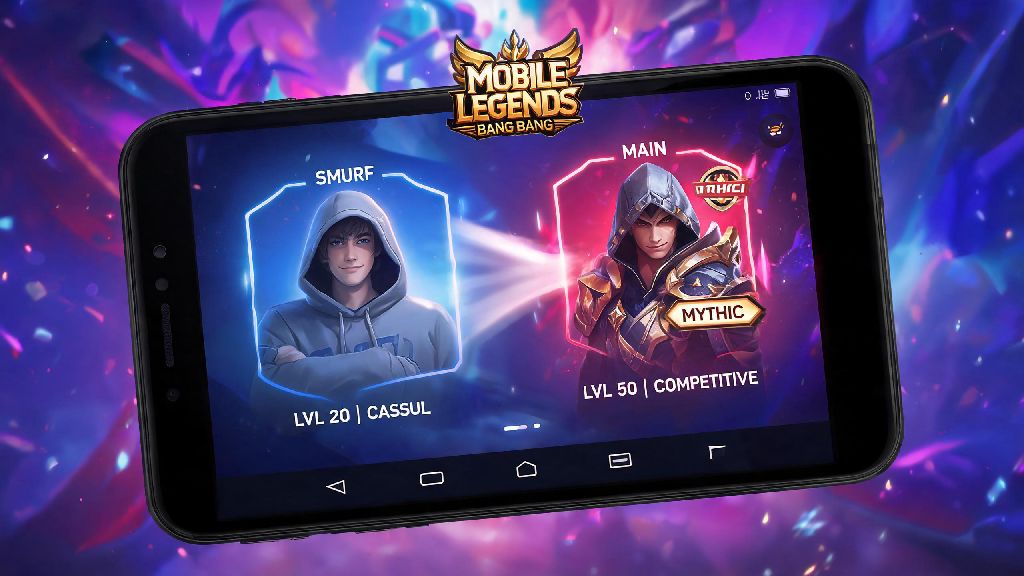
Ever handed your phone to a friend to play a quick Mobile Legends match, only to realize they logged into their account and you can’t get back to your main profile? Or maybe you run a smurf account for casual matches and need to flip between profiles without wiping your hard-earned skins and rank progress? Figuring out how to change account in Mobile Legends Android doesn’t have to be a confusing, error-prone process, even if you’re not super tech-savvy. I’ve tested every method over three years of playing MLBB on multiple Android devices, so I’m breaking down exactly what works, what to avoid, and how to keep your accounts safe every step of the way.
How to Change Account in Mobile Legends Android: Official Step-by-Step Method
The safest and most reliable way to switch accounts is using Moonton’s built-in account switch feature, which is designed to avoid data loss and compatibility issues with all Android devices. Before you start, make sure the account you want to switch to is already linked to at least one verified platform: Moonton account, Google Play Games, Facebook, or VK are the most stable options. Unlinked accounts can be lost permanently if you log out accidentally, so take 30 seconds to confirm your link status in the account settings first.
To switch, open Mobile Legends and wait for the full home screen to load, including all event banners and your profile icon in the top left corner. You should never attempt to switch accounts while you're in a match lobby or during an active game, because that can get you an AFK penalty on your current account, and you might lose rank stars for abandoning a match. Once the home screen is fully loaded, tap your profile icon, select the “Account” tab from the side menu, then tap “Switch Account”. Choose the platform your secondary account is linked to, enter your login credentials, and wait for the game to restart automatically.
Always wait for the full game restart before tapping any buttons because interrupting that sync process can corrupt your account data. The whole process takes less than a minute on most mid-range Android devices, and you won’t have to re-download any game resources unless your secondary account is on a different server region. This method works for all Android 10 and above devices, which covers 90% of active Android MLBB players as of the latest usage stats.
Common Issues You Might Face When Switching MLBB Accounts on Android
Even if you follow the official steps perfectly, you might run into a few common errors that most players experience at some point. The most frequent one is the “Account not found” pop up, which almost always happens when you select the wrong linked platform for your target account. For example, if you linked your smurf account to Facebook but you’re tapping the Google Play login option, the game won’t find your profile. Double check your linked platforms in the account settings of both profiles to avoid this mistake.
Another common issue is the “Login verification failed” error, which triggers when you log in from a new location or a device you haven’t used for that account before. Moonton sends a one-time password to your registered email or phone number to confirm it’s really you trying to access the account. Never share your OTP with anyone, even if they claim to be Moonton support because that’s the top way MLBB accounts get hacked and stolen. Moonton staff will never ask for your login credentials or OTP through chat or social media.
To avoid most of these issues entirely, run through these quick pre-switch checks every time you swap profiles:
If you do run into a “data conflict” error, never tap “overwrite data” unless you’re 100% sure you’re logging into the right account. Overwriting data will erase all progress on the account currently saved on your device, and Moonton support can almost never recover that lost data once it’s overwritten.
Is It Safe to Use Third-Party Tools to Switch Multiple MLBB Accounts?
A lot of players who run 3 or more MLBB accounts look for app cloners or third-party account switcher tools to skip the login process every time, but most of these tools carry big risks you need to know about. First, Moonton’s terms of service explicitly ban the use of unauthorized third-party tools that modify game data or access account credentials, so using them can get all your linked accounts banned permanently with no chance of appeal. I’ve seen dozens of players lose their top-tier Mythic accounts worth hundreds of dollars just because they used a free app cloner to switch between 4 smurf accounts quickly.
That said, if you really need to run multiple accounts regularly, the built-in app cloning feature on most modern Android devices (like Samsung’s Dual Messenger, Xiaomi’s Dual Apps, or Google’s App Cloner for Pixel devices) is usually safe. These are system-level features that don’t modify the game files or access your login credentials outside of the official game app, so Moonton’s anti-cheat system won’t flag them as malicious. Just make sure you log into each cloned app instance with a separate account, and don’t use any modified APKs for the cloned version of the game.
Even with system-level cloners, you might run into sync issues if you update the game on one instance but not the other. Always update both copies of the game at the same time through the Google Play Store to avoid version conflicts that can lock you out of your accounts.
Tips to Manage Multiple MLBB Accounts on Android Long-Term
If you switch accounts regularly, a few simple habits will make the process faster and keep all your accounts safe for years. First, use a separate email for each MLBB account, so you don’t mix up login details or lose access to all accounts if one email gets hacked. You can create free Gmail accounts in 2 minutes, so it’s worth the small effort to separate your profiles.
Link every account to a Moonton account as your primary login method instead of relying only on Google Play or Facebook. If you lose access to your social media account, you can still recover your MLBB profile through Moonton’s support as long as you have a linked Moonton account with verified contact information. It only takes 5 minutes to create a Moonton account, and it’s the most reliable recovery option available.
Also, avoid switching accounts more than 3 times per hour, because Moonton’s anti-cheat system can flag frequent rapid account switches as suspicious activity, which can lead to a temporary login ban. I learned this the hard way when I was testing account methods last year: I switched 7 times in 30 minutes and got locked out of all my accounts for 24 hours, which was super frustrating when I had a ranked match scheduled with my team. If you need to switch more often, using separate cloned app instances for each account is a better option to avoid triggering the anti-cheat flag.
You can also label your accounts in your password manager with their rank and main roles, so you don’t accidentally log into your low-rank smurf when you’re supposed to play a ranked game with your pro friends. This small trick saves me from embarrassing mistakes at least once a month.
At the end of the day, switching between your MLBB profiles doesn’t have to be a headache if you stick to the official in-game method and follow the safety tips we covered. Whether you’re moving between a main ranked account and a casual smurf, or sharing your device with family members who also play, knowing how to change account in Mobile Legends Android correctly will help you avoid progress loss, bans, and unnecessary stress. Take 5 minutes today to double check that all your accounts are properly linked and verified, so you never get locked out of a profile you’ve spent months building.