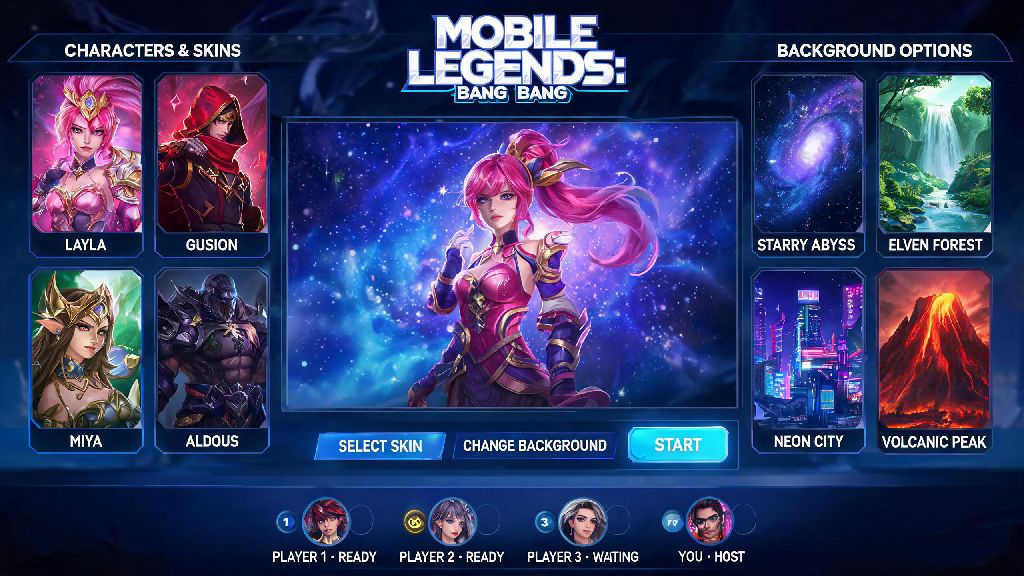
If you’ve logged into Mobile Legends every day for months and are tired of seeing the same default lobby background every time you open the app, you’re not alone. I spent half a year staring at the generic promo background before I realized I could swap it out for something that actually fits my play style and preferences. Learning how to change background in Mobile Legends is one of the easiest small tweaks you can make to personalize your game experience, and it doesn’t take more than a few minutes even if you’re not super tech-savvy. Best of all, you don’t have to spend any diamonds to do it if you stick to the free unlocked options already in your account.
How to Change Background in Mobile Legends: Official In-Game Method
The safest way to switch up your lobby background is to use Moonton’s built-in customization tool, which requires no third-party apps or file modifications. This method works for both Android and iOS users, and there is zero risk of getting your account banned since it’s a feature the developer added intentionally. To use it, open Mobile Legends and tap your profile icon in the top left corner of the main lobby. Once you’re on your profile page, look for the small camera icon in the top right corner of your existing background banner, and tap it. You’ll see a full list of all backgrounds you’ve unlocked through events, login rewards, or promo purchases, and you can preview each one before setting it as your default.
Important note: Any background you unlock through official in-game events stays in your collection permanently, even after the event ends. For example, if you participated in the recent anniversary events, you probably have a handful of limited-edition backgrounds you didn’t even know you had access to. The only downside of this official method is that you can’t upload your own custom photos, so you’re limited to the options Moonton has released. But if you’re someone who doesn’t want to mess with game files, this is the perfect option for you.
How to Use Custom User-Uploaded Backgrounds for Mobile Legends
If you want to use a personal photo, your main hero’s fan art, or your squad’s logo as your lobby background, you can modify local game files to do this, but there are a few caveats to note first. This method only works for Android users right now, since Apple’s operating system restricts access to internal game files for third-party apps. You will not get banned for this if you only modify local cosmetic files that only you can see, but you should never modify files that affect gameplay, as that will violate Moonton’s terms of service and lead to a permanent ban. You should also always back up your original game files before making any changes, so you can revert back if something goes wrong.
Before you start, make sure your desired background photo meets these requirements to avoid crashes or blurry visuals:
Once your photo is ready, go to your phone’s internal storage, find the Mobile Legends folder, and navigate to the subfolder that stores lobby background assets. Rename the original default background file to “backup_bg.png” so you can find it later if you need to revert. Rename your custom photo to match the exact file name of the original background, then move it into the assets folder and replace the existing file. Close Mobile Legends completely, reopen it, and your new custom background should show up immediately. I tested this method last year with a custom splash art of my main hero Ling, and it worked without any issues for three months until the next major game update.
Troubleshooting Common Issues When Changing Your MLBB Background
Even if you follow all the steps correctly, you might run into small issues when swapping your background, and most of them are easy to fix. The most common problem people run into is a blurry or stretched background, which almost always happens because your photo’s resolution doesn’t match the 1920 x 1080 requirement. You can use a free photo editing app on your phone to crop or resize your image to the correct dimensions before uploading it, and that will fix the blurriness immediately.
If your game crashes immediately after you add a custom background, that usually means your file is too large, or you named it incorrectly. Go back to the assets folder, check that your file name matches the original exactly, and compress the photo if it’s over 2MB. Save your custom background file in a separate folder on your phone so you don’t have to edit it again every time you run into an issue. Another common problem is your background resetting to default after a game update, which is normal because major MLBB updates overwrite all local asset files. You’ll just have to re-add your custom background after each update, which takes less than a minute if you have the file saved separately.
If the official in-game background change option is missing from your profile, that usually means you’re running an outdated version of Mobile Legends. Go to the Google Play Store or Apple App Store to download the latest update, and the camera icon will reappear on your profile banner once the update is installed. Sometimes Moonton temporarily locks the background to a global event promo for a few days, but it will unlock automatically once the event ends.
Fun Background Ideas to Make Your MLBB Lobby Stand Out
Now that you know how to change your background, you might be wondering what options to try first. One of the most popular choices is to use the splash art of your highest win rate hero, so every time you open the game you’re reminded of the character you’re best at. I use the splash art for my Ling M-World skin as my background, and almost every friend who visits my profile asks me how I got it, since it’s not available as an official unlockable background right now.
If you play with a regular squad, you can use your squad’s custom logo as your background to show team pride, especially if you compete in local amateur tournaments or stream your gameplay. Another great option is to use limited-edition event backgrounds you unlocked during big global tournaments, like the M5 World Championship background, since it shows other players you were active during the event and makes your profile look more unique. You can also use personal photos, like a picture of your pet, your favorite travel spot, or a photo of you and your friends who play MLBB together, to make the game feel even more personal.
Avoid using backgrounds with bright, clashing colors because they can make the white lobby text hard to read, and they can be distracting when you’re navigating between game modes or waiting for a match to start. If you stream your MLBB gameplay, you can also use a background that matches your stream’s color scheme or branding, so your viewers can immediately recognize your content when they see clips of your lobby on social media. You can even swap out your background for holiday-themed art during festive seasons to match the mood of the game’s ongoing events.
At the end of the day, small personalization tweaks like this make playing Mobile Legends feel a lot more fun and tailored to your tastes, rather than just using the generic interface Moonton provides. Whether you stick to the safe official method or experiment with custom uploaded images, learning how to change background in Mobile Legends takes just a few minutes, and you can swap it out as often as you want to match new skins, events, or your current mood. Just remember to prioritize your account safety first, back up your files if you’re making custom changes, and don’t use any content that violates the game’s terms of service.