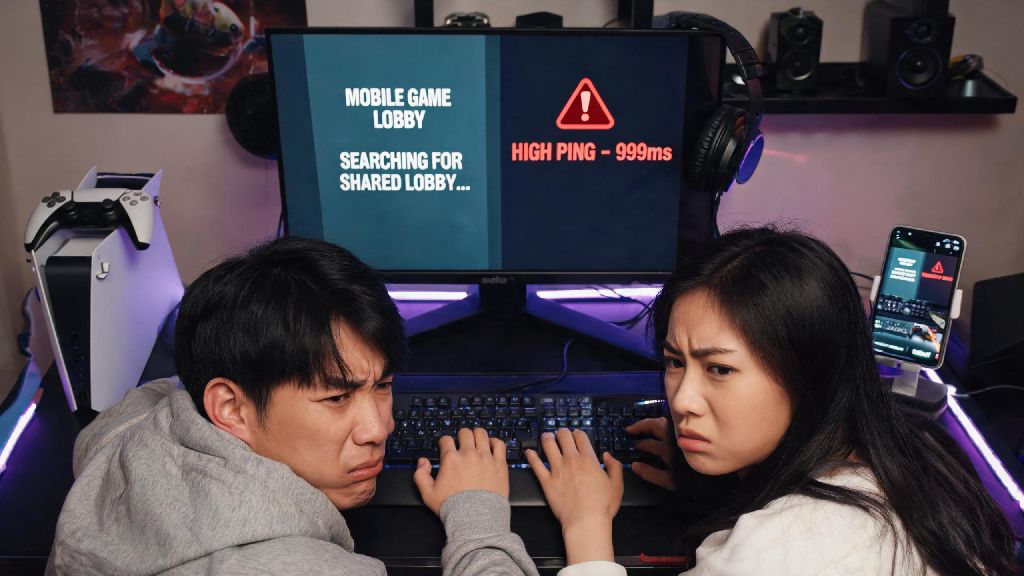
Have you ever tried to queue up for ranked with a friend who lives in another country, only to get hit with a 200+ ping warning or not be able to find their lobby at all? I’ve been there too. A couple of years back, when my cousin moved to Singapore from my home in Indonesia, we spent almost half an hour fumbling through settings trying to figure out how to change my server in Mobile Legends so we could grind matches together. A lot of players worry that switching servers will erase their hard-earned skins, rank progress, or bound accounts, but that’s not the case if you follow the official, approved steps. This guide walks you through every part of the process, plus common pitfalls to avoid so you don’t run into unexpected account issues.
How to Change Your Server in Mobile Legends: Official Step-by-Step Process
Moonton has a built-in server switching feature that is 100% safe to use, no third-party apps or workarounds required. This is the only method we recommend, as any other tool can trigger the game’s anti-cheat system and lead to account restrictions. Before you start, make sure you are not in an active match, custom room, or event queue, as you will be forced to restart the game partway through if you are.
For players who don’t see the server option in their account settings, that usually means you’re using an unbound guest account, or your local region has restricted cross-server play for regulatory reasons. If you’re on a guest account, binding it to a verified Moonton account, Google account, or Facebook account will usually unlock the server switch feature within 24 hours. If it’s still locked after that, it’s likely your region doesn’t allow cross-server play, and attempting to work around that restriction can lead to a permanent account ban.
Key Reasons to Switch Your Mobile Legends Server
Most players only think about switching servers when they want to play with friends abroad, but there are a handful of other practical reasons to use this feature. It’s not just for cross-region play, and a lot of long-time players use server switches to improve their overall gameplay experience.
The most common reason is play with friends in other regions. Mobile Legends lobbies are region-locked by default, so if your friend is in Europe and you’re in Southeast Asia, you won’t be able to join the same queue on your default servers. Switching to the same server removes that barrier entirely, and you’ll only have to deal with a small ping increase if you pick a server close to both of your locations.
Another popular reason is fix consistent high ping. Sometimes your default assigned server can get overcrowded during peak play hours, leading to lag spikes and rubber-banding even if you have a strong internet connection. I had this issue a few months back during a holiday weekend, when my local Indonesia server was running at 90% capacity. Switching to the nearby Singapore server dropped my ping from 170 to 38 instantly, no other changes needed.
You can also switch servers to access region-exclusive events. Moonton often runs collab events, hero test runs, and limited-time reward programs in specific regions first before rolling them out globally. Switching to the test region lets you earn limited skins and items weeks before they’re available on your default server. Just note that any progress you make on these events will only apply to the server you earned them on, so they won’t transfer back to your main account.
Common Mistakes to Avoid When Changing Servers
Even though the official server switch process is straightforward, there are a handful of mistakes new players make all the time that lead to lost progress, wasted money, or even account bans. These are all easy to avoid if you know what to look out for.
The biggest mistake by far is using third-party VPNs to force server switches. A lot of players use free VPNs to access servers that aren’t available in their official list, but Moonton’s anti-cheat system flags VPN usage as suspicious activity, especially if you’re switching regions multiple times in a short window. This can lead to a temporary 72-hour ban first, and a permanent ban if you repeat the offense. The official in-game switch feature is the only safe way to swap servers.
Next, don’t make the mistake of forgetting to bind your original account first. If you’re using an unbound guest account and you switch servers, you might lose access to your original progress entirely if you log out accidentally or the game crashes during the switch. Always double-check that your account is bound to a verified email or social media account before you attempt to switch servers, even if you’re only planning to swap for one match.
You also want to avoid switching servers during ranked season resets. I made this mistake last year, when I switched to the North America server right as the new season dropped to play with a friend. When I switched back to my main server two days later, my ranked season rewards (including the limited Mythic skin) were missing. I had to contact support for three days to get them restored, which was a huge hassle. Wait at least 48 hours after a season reset to switch servers, so all rewards have time to be credited to your account.
What to Expect After You Switch Servers
A lot of players are surprised by the small changes that come with switching to a new server, so it’s good to know what to expect before you make the swap. None of these changes are permanent, and you can switch back to your original server at any time, with a 24-hour cooldown between switches.
First, your account progress is completely separate per server. That means if you’re a Mythic rank player with 100+ skins on your main SEA server, you’ll start at Warrior rank with no skins on a new North America server. You don’t lose any of your original progress, though — it’s all waiting for you when you switch back. Matchmaking will be based on the new server’s MMR pool, so your first few matches on the new server will be against newer players until your MMR adjusts to your actual skill level.
You’ll also notice that in-game store prices are adjusted to match the local currency of the server you switched to. Don’t panic if you see diamond prices listed in dollars instead of rupiah or pesos, that’s just the local pricing for that region. Just remember that any diamonds you buy on one server can’t be transferred to another, so always double-check you’re on the correct server before making any in-game purchases.
Event timelines and available content will also differ between servers. For example, Lunar New Year events usually run a week earlier on East Asian servers than they do on European or South American servers, so switching over can let you earn limited rewards before they’re gone for good. Friends lists are also separate per server, so you’ll have to add your cross-region friends again on the new server if you want to queue with them regularly.
Switching servers doesn’t have to be a complicated or risky process if you stick to the official steps we laid out. Whether you’re trying to play with friends overseas, fix persistent lag, or check out new events early, knowing how to change your server in Mobile Legends opens up a ton of extra gameplay options you wouldn’t have access to otherwise. Just remember to bind your account first, avoid unapproved VPN tools, and be aware that progress is separate per region, and you’ll have no issues swapping between servers whenever you want. If you run into any unexpected errors during the process, you can always reach out to Moonton’s in-game support for help, they usually respond within 24 hours for account-related issues.