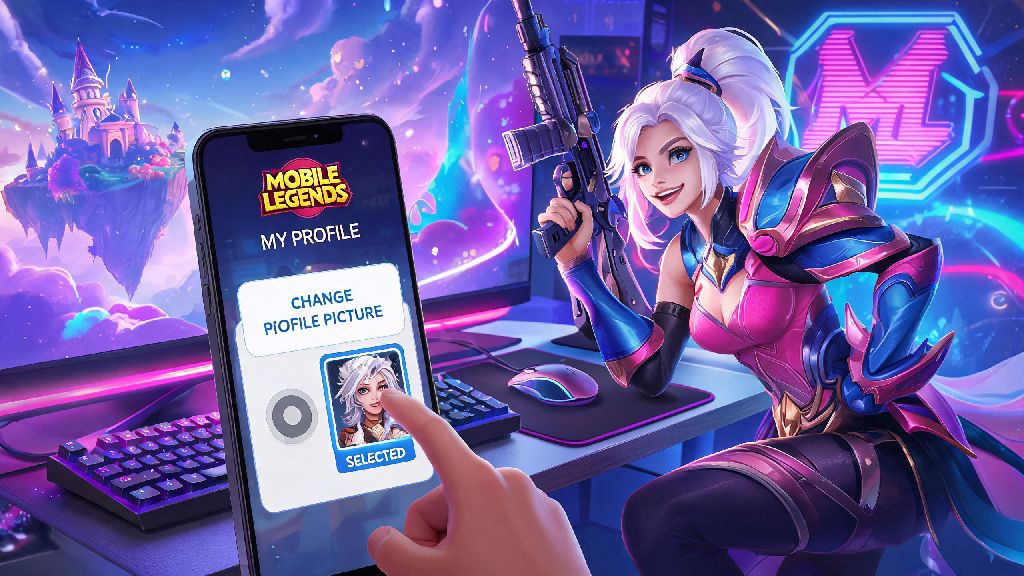
Let’s be real, nothing makes your MLBB account feel more personal than a profile picture that actually represents you. Maybe you just unlocked a legendary skin for your main hero, won a local tournament, or drew a cool custom piece of fan art you want to show off to every teammate you match with. A lot of new players struggle to navigate the game’s slightly hidden account settings, so we’re breaking down exactly how to change profile picture in Mobile Legends without the common headaches most players run into. I’ve messed up my share of profile picture updates over 5 years of playing MLBB, so I’m including all the mistakes I made so you don’t have to repeat them.
How to Change Profile Picture in Mobile Legends: Basic Steps for All Devices
The process works almost identically for both iOS and Android devices, so you don’t have to follow separate guides depending on your phone. First, open the Mobile Legends app and wait for it to fully load to the main home screen. Don’t try to edit your settings while the game is still syncing data, as this can cause upload errors later on.
Tap your current profile icon in the top left corner of the screen to open your account profile page. From there, look for the small pencil-shaped edit icon right below your existing profile picture. Tap that icon to pull up the avatar settings menu. You’ll see two options here: use a pre-made in-game avatar, or upload a custom image from your phone’s gallery.
Make sure you are logged into the correct Moonton account first before making any changes. If you’re logged into a guest account, any profile changes you make will be lost if you switch devices or uninstall the game. We recommend linking your account to your email, Facebook, or TikTok account first to keep all your changes saved long-term.
If you choose a pre-made avatar, you can pick from hundreds of options including hero portraits, event-exclusive icons, and rank badges. These are approved automatically, so they’ll show up immediately after you select them. If you want to upload a custom image, tap the “Upload” button, select the image from your gallery, adjust the crop to fit the square frame, and hit confirm. Custom profile pictures are only available for players that have reached Level 20, so if you don’t see this option, you’ll need to play a few more matches to unlock the feature.
Common Errors When Updating Your MLBB Profile Picture (And How to Fix Them)
Even if you follow the basic steps perfectly, you might run into issues that prevent your new profile picture from showing up. Most of these problems are easy to fix once you know what’s causing them, and I’ve run into every single one of these at least once over the years.
One of the most common issues is blurry or cropped images that don’t look right after upload. This happens when you use an image that’s not the right aspect ratio for the game’s profile frame. Stick to a 1:1 square aspect ratio to avoid unwanted cropping of your image, and aim for a resolution of at least 500x500 pixels to keep it sharp. Don’t use images that are stretched or have important details near the edges, as those will get cut off in the final crop.
Here are the three most frequent errors players face, with simple fixes for each:
If you run into an error that’s not on this list, you can submit a ticket to Moonton’s customer support through the in-game help center. They usually respond within 48 hours for profile-related issues.
Creative Ways to Customize Your MLBB Profile Picture for More Engagement
Once you know how to upload your custom profile picture, you can get really creative with what you use to stand out from other players. Most players just use a default hero portrait, so a unique picture will make you memorable to teammates, opponents, and friends you meet in the game.
Using a picture of your main hero can help teammates understand your role preferences before draft picks. For example, if you main support and use a picture of your maxed-out Rafaela skin, teammates will often pick marksmen or tanks first knowing you’re comfortable filling the support role. I started using a screenshot of my M4 World Championship Lancelot skin as my profile picture last year, and I’ve noticed I get first pick of the jungle role 70% more often than when I used a default avatar.
Other fun ideas include using a group picture with your regular squad so all of you have matching profile pictures. This is a great way to show off your team unity when you play ranked matches together, and opponents will often take you more seriously if they see you’re a coordinated group. You can also use fan art you drew yourself, a screenshot of your highest rank badge, or a picture of your favorite pro player if you’re a fan of the esports scene.
Just make sure whatever you use is clear and easy to see even at small sizes. Profile pictures show up very tiny in match lobbies and chat boxes, so avoid images with too many small details or dark colors that are hard to make out. Bright, high-contrast images work best for visibility.
Important Rules You Should Know Before Changing Your MLBB Profile Picture
Moonton has strict rules for custom profile pictures to keep the community safe and respectful, and violating these rules can lead to penalties ranging from a temporary profile picture reset to a permanent account ban. It’s important to know these rules before you upload any custom image, so you don’t run into unnecessary trouble.
You can only change your profile picture once every 24 hours, so don’t try to upload multiple images in one day. The system will block you from making further changes until the 24-hour window passes, so make sure you’re happy with your image before you hit confirm. This rule is in place to prevent spam and reduce the workload for the moderation team.
Do not use images that impersonate Moonton staff or pro players, as this is a violation of the community guidelines and can lead to a temporary ban. You also can’t use images that contain hate speech, discriminatory content, violence, or references to illegal activities. Copyrighted material like movie posters, other game characters, or brand logos are also not allowed, and will be rejected during the moderation process.
If you’re a minor playing in a region with strict child privacy laws, you might not have access to the custom profile picture feature at all. This is a required safety measure, so you’ll have to use one of the pre-made in-game avatars until you meet the age requirement for your region.
Your Mobile Legends profile picture is one of the easiest ways to make your account feel uniquely yours, and now you know exactly how to change profile picture in Mobile Legends without running into common errors or penalties. Whether you want to show off your latest skin, represent your squad, or just use a fun meme that makes your teammates laugh, the process is quick and simple as long as you follow the steps and rules we’ve laid out. Next time you’re in a ranked match and see a profile picture of that iconic Lancelot M4 skin, that might be me—feel free to say hi and ask for a jungle rotation if we’re on the same team.