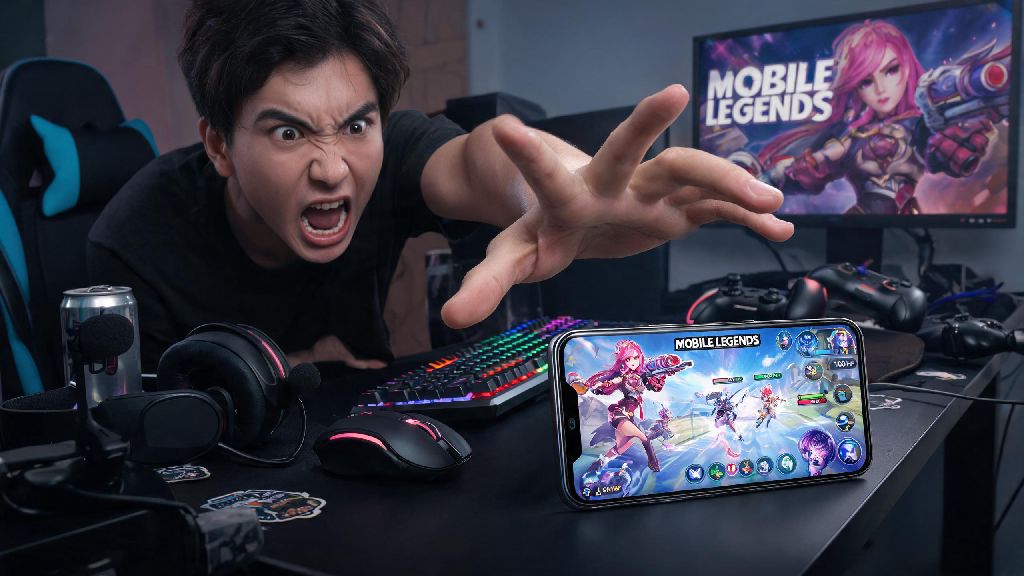
Picture this: you’re 10 seconds away from closing out a ranked match, your team has pushed to the enemy base, and you’re lining up a perfect ultimate to pick off the last two remaining heroes. Then your screen freezes for three whole seconds, and when it unfreezes, you’re dead, your base is destroyed, and you just lost a full star you spent 20 minutes grinding for. If that sounds familiar, you’re far from alone. Lag is the single most frustrating issue for Mobile Legends players across all skill levels, and learning how to fix lag in Mobile Legends can immediately boost your win rate without any need to improve your mechanical skills.
How to Fix Lag in Mobile Legends With In-Game Setting Tweaks
In-game settings are the first stop for fixing lag, because they take less than two minutes to adjust and don’t require any permanent changes to your phone. A lot of players crank all settings to high just because they think it looks better, but even mid-range phones can struggle with that during chaotic 5v5 team fights when 10 heroes are all casting skills at once. You don’t have to sacrifice gameplay quality for smoother performance, either; most of the settings that cause lag add nothing to your ability to play well.
So many players I queue with refuse to lower their graphics because they say the game looks “ugly” on low settings, but I’d take a smooth 30 FPS where I can hit every skill over a choppy 60 FPS with pretty effects any day. You’ll also notice that almost all pro MLBB players play on low or medium graphics, even with top-tier devices, to eliminate any chance of lag during important tournaments.
Network Optimization Fixes for Consistent, Low-Ping Gameplay
Even if your device is running the game perfectly, a bad internet connection will cause lag that feels just as frustrating as device stutters. Most players assume Wi-Fi is always better than mobile data, but that’s not always the case, especially if you’re sharing your Wi-Fi with other people streaming shows or downloading large files while you play.
Always prioritize a 5GHz Wi-Fi connection over 2.4GHz if it’s available: 5GHz has less interference and faster transfer speeds, which cuts down on ping spikes by a huge margin. If you’re playing on mobile data, try to stay in an area with strong 4G or 5G coverage, and avoid playing while you’re in a moving car or bus, as the constant tower switching will cause regular lag spikes.
Also, turn off any VPNs or ad blockers you have running while you play, as these route your connection through extra servers that add unnecessary ping. I’ve tested this myself a dozen times: running a free VPN while playing adds an average of 80ms to my ping, which is more than enough to make my skills feel delayed and cause me to miss easy skill shots.
Background App and Storage Tweaks Most Players Ignore
A lot of players blame their phone or their internet for lag, when the real issue is all the apps running in the background eating up RAM and processing power. If you have social media apps, streaming apps, or even other games open in the background while you play Mobile Legends, they’re taking up resources that the game needs to run smoothly. Before you start a match, close all open apps entirely, not just minimize them.
You should also make sure you have at least 10% of your device’s storage free at all times. If your storage is almost full, your phone’s read/write speeds slow down drastically, which will cause in-game stutters and longer loading times for matches and draft pick.
Clear your Mobile Legends cache once every two weeks: This removes old temporary files like unused hero skins, event assets, and old match replays that build up over time and take up valuable space. I did this last month when my game kept stuttering during draft pick, and it cut my loading time in half immediately. You don’t have to worry about losing your account data when you clear the cache, as all that is saved to your Moonton or social media account.
Advanced Fixes for Persistent Lag on Low-End Devices
If you’ve tried all the basic fixes and you’re still dealing with lag, there are a few more advanced tweaks you can try that work specifically for older or lower-end phones. First, turn off all system animations on your device. These are the little animations that play when you open or close apps, switch between screens, or unlock your phone, and they take up small amounts of RAM that add up when you’re playing a resource-heavy game.
Turn on “do not disturb” mode before every match: Not only does this stop calls and notifications from popping up mid-game and distracting you, it also turns off background sync for notifications, which frees up extra processing power. I’ve had matches where a random text message would cause a 2-second freeze right as a team fight started, and enabling do not disturb completely eliminated that issue for me.
If you have an Android device, you can also enable developer options and turn on “force 4x MSAA” or adjust the background process limit to “no background processes” for even better performance, but be careful with these settings if you don’t know what you’re doing, as they can affect other functions on your phone. That means you should only adjust developer settings if you’re comfortable reverting them if something goes wrong. For iOS users, you can turn off background app refresh entirely for all apps except the ones you absolutely need to update in the background, which will free up a lot of extra RAM for Mobile Legends.
At the end of the day, you don’t need a $1000 gaming phone to enjoy smooth, lag-free Mobile Legends matches. The vast majority of lag issues can be fixed with a few simple tweaks to your in-game settings, internet connection, and device setup, no technical expertise required. Take 10 minutes to test out these fixes before your next ranked match, and you’ll be shocked at how much easier it is to hit your skills, win team fights, and climb the ranks when you don’t have to worry about random freezes or delayed inputs. Once you learn how to fix lag in Mobile Legends, you’ll wonder how you ever played the game without these tweaks.