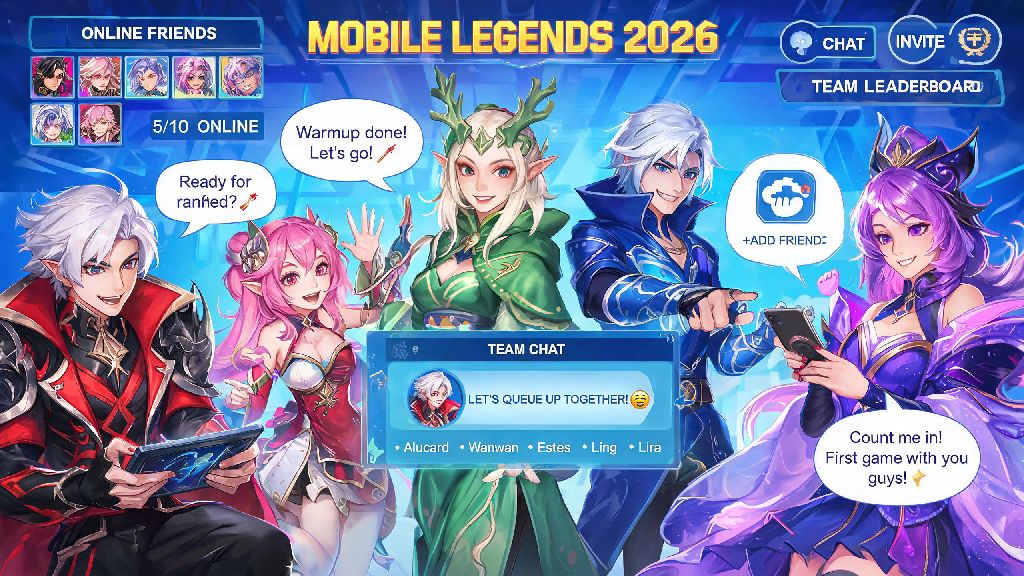
If you’ve hopped on Mobile Legends’ 2026 new patch updates, you’ve probably noticed the revamped social system that makes teaming up with friends smoother than ever. Whether you’re a new player trying to connect with real-life pals or a veteran looking to add a standout teammate from your last ranked match, the process isn’t always obvious if you haven’t navigated the new menus yet. This guide breaks down exactly how to add friend on Mobile Legends, plus extra tips to avoid common glitches and build a solid list of teammates you can count on for ranked climbs.
Step-by-Step Process to Add Friend on Mobile Legends (2026 Updated)
First off, make sure your game is updated to the 2026 latest patch before you start. The older versions of the app have a different friend menu layout, and you might run into sync errors if you’re not running the most recent build. Once you’re logged into your account and on the main home screen, you can add friends through four official channels depending on your situation:
If you’re using the ID search method, you can find your own unique ID under your profile avatar on the top left of the home screen. It’s a 7 to 10 digit number, and you can tap it to copy it directly to send to friends. When you enter another player’s ID, double check the number suffix at the end, as many players add random numbers to their nicknames to stand out. I once spent 10 minutes searching for my cousin’s account before I realized I missed the last two digits of his ID, so this small check saves a lot of frustration. Once you find the right profile, just tap the “add friend” button, add an optional short note, and send your request.
Common 2026 Friend Request Errors and How to Fix Them
Even if you follow all the steps correctly, you might run into occasional errors thanks to the 2026 social system’s new privacy and anti-spam rules. Most of these issues are easy to fix once you know what’s causing them, and you don’t need to contact customer support for 90% of cases.
The most frequent issue people run into is the “player not found” error. This usually happens for one of three reasons: you entered the wrong ID or nickname, the player has changed their display name in the last 7 days, or they’ve adjusted their privacy settings to hide their profile from public searches. If you’re sure you have the right ID, ask the other player to check their privacy settings and turn on “allow search by ID” if it’s toggled off. The 2026 update turns this setting off by default for new players under level 20 to cut down on spam, so that’s the most common cause for new accounts.
Another common problem is the friend request limit reached notification. As of 2026, Mobile Legends caps pending outgoing friend requests at 50, and total friends at 500. If you hit the pending limit, delete a few old requests you sent to players you don’t remember anymore, and you’ll be able to send new ones. If you hit the total friend limit, you can clear out players who have been inactive for 6 months or more to free up space. The game now has a “filter inactive friends” tool that makes this process take less than a minute.
You might also notice a request you sent disappears without a response. That doesn’t always mean the player rejected you – sometimes the system auto-deletes requests after 7 days if they’re not accepted or declined. If you played with someone and really want to team up again, wait 24 hours and send a short note with your request mentioning the match you played together, so they know you’re not a spam account.
Best Practices for Safe and Useful Friend Connections in 2026
Adding friends on Mobile Legends isn’t just about growing your list – it’s about building a network of players you can team up with for ranked matches, which will drastically improve your win rate if you pick the right people. There are also a few safety rules to follow to avoid spam and scams, which have become more common as the game’s user base grows in 2026.
Only send friend requests to players you’ve actually played with and trust, or people you know in real life. Spam accounts often send random friend requests to players to share links to fake “free skin” sites that steal account credentials, so don’t accept requests from accounts with level 1 profiles or no ranked match history. If you get a request from someone you don’t recognize, check their match history first to confirm they’re a real player. The 2026 update now shows a red warning label on accounts that have been reported for spam multiple times, so you can spot fakes easily.
Adjust your privacy settings to control who can send you requests if you get a lot of spam. As of 2026, you can set your account to only accept requests from players you’ve matched with in the last 24 hours, or only people who search for your exact ID. This cuts down on random spam requests almost entirely, and you can always toggle the setting off if you want to meet new players for casual matches.
If you add someone you played a great match with, send a short message with your request, like “great jungling in our last Mythic match, want to queue up again later?” Personalized requests are 3x more likely to get accepted, per 2026 Mobile Legends community data. I’ve added dozens of high-skilled players this way, and many of them are now part of my regular ranked queue group that helped me hit Mythic Glory last season.
How to Manage Your Mobile Legends Friend List for Better Gameplay in 2026
Once you’ve built up your friend list, the 2026 update has a bunch of new features to organize it so you can find the right teammates quickly when you want to queue. You don’t have to scroll through hundreds of names to find the player who mains tank or support anymore, if you use the new tools correctly.
Use the custom friend group feature to organize teammates by rank or playstyle. For example, you can create a group for “Mythic ranked teammates”, “casual ARAM friends”, or “support mains” so you can filter your list with one tap when you’re looking for a specific type of player to team up with. I have a group specifically for players who main roam, and it’s cut my queue wait time in half when I’m playing ADC and need a reliable support. You can create up to 10 custom groups, so you can sort your list however makes sense for your play habits.
You can also use the 2026 new “availability status” feature to let friends know if you’re open to queueing, busy doing ranked solo, or AFK. This stops you from getting spammed with invites when you’re in the middle of a promotion match, and makes it easier to find friends who are free to play when you log on. You can toggle your status directly from the friend menu with one tap, so it’s super easy to update.
If you have friends who you play with all the time, mark them as “close friends” to get extra 2026 in-game perks, like 5% extra battle points when you queue together, and priority access to custom room slots if you’re running a tournament with friends. You can have up to 20 close friends on your list, so save those spots for the players you team up with most often. You can also set custom notifications for close friends, so you get an alert when they log on even if you’re in a match.
Teaming up with people you trust is one of the best parts of playing Mobile Legends, and the 2026 social updates make that easier than ever once you know how to navigate the system. Whether you’re connecting with real-life friends or adding a standout player from your last match, the steps we covered here will help you skip common glitches and build a friend list that helps you climb ranks faster. Now that you know how to add friend on Mobile Legends, you can jump into your next match with a solid team by your side. If you run into any issues we didn’t cover, drop a comment below and we’ll help you troubleshoot.