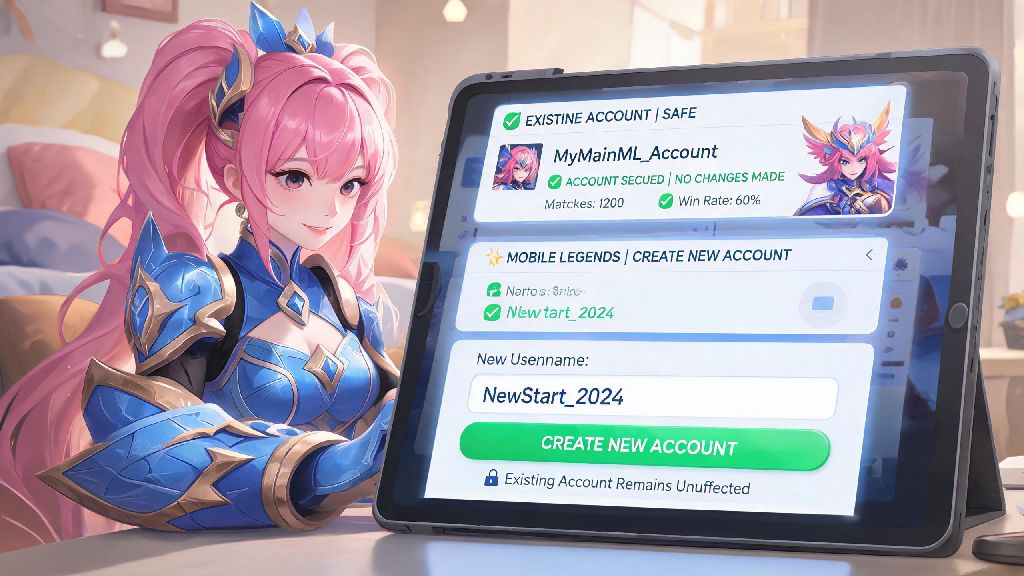
Anyone who’s played Mobile Legends for long enough has probably thought about starting fresh at some point. Maybe you want to try out a new main role without tanking your existing rank, or you accidentally linked your account to a social media profile you no longer use. No matter your reason, knowing how to create new Mobile Legends account the right way will save you hours of frustration and prevent you from missing out on free welcome rewards most new players don’t even know exist. I’ve set up more than 7 test accounts over the past three years to test new hero builds and play with lower-ranked friends, so I’ve figured out all the common pitfalls that trip up new users during sign-up.
How to Create New Mobile Legends Account Without Losing Your Existing Profile
The biggest fear most players have when making a new account is accidentally deleting or overwriting their main profile with years of progress, skins, and rank achievements. That’s a valid concern, but it’s completely avoidable if you follow a few basic rules first. Never delete your original Mobile Legends app to make a new account – the game has a built-in account switch feature that lets you hold up to 4 separate profiles on one app installation, no extra downloads required.
For Android users, you can also use your device’s built-in app cloning feature to run two separate versions of Mobile Legends if you want to access both accounts at the same time without switching back and forth. Apple users can switch between accounts linked to different Apple IDs or Game Center profiles in just a few taps. But you can’t link two accounts to the same email address, phone number, or social media profile, so make sure you have a unique login option set aside for your new account before you get started.
If you’re just testing out a new build and don’t plan to keep the account long term, you can use the guest sign-up option to skip entering personal details. Just know that guest accounts are tied directly to your device, so if you uninstall the game or lose your phone, you’ll lose all progress on that profile permanently. Never use modded or cracked versions of Mobile Legends to create an account, as this will result in an immediate permanent ban that applies to all accounts linked to your device.
Step-by-Step Sign-Up Process for All Devices
The sign-up process is almost identical across Android, iOS, and even emulator setups for PC players. You don’t need any special software or payment info to make a new account, and the whole process takes less than 5 minutes if you have your login details ready. Follow these exact steps to avoid errors:
If you’re an experienced player making a smurf account, you’ll see an option to skip most of the tutorial after you finish your first practice match. Skipping the tutorial saves you about 10 minutes of time, but you’ll miss out on a small amount of extra battle points and hero fragments that come with completing the full new player walkthrough. It’s up to you to decide if the time saved is worth the small reward loss. Age verification checks are mandatory in most regions, so you won’t be able to skip this step – entering a fake age will trigger strict playtime limits that restrict you to just 1 hour of play per day if you’re marked as under 13.
Common Sign-Up Errors and How to Fix Them Fast
Even if you follow every step perfectly, you might run into a few common errors during the sign-up process. Most of these are easy to fix in a minute or two, no support ticket required. The most frequent error people see is the “account already exists” notice when they enter their email or phone number. That just means the contact info you used is already linked to an existing Mobile Legends account – you can either use a different email, or go to your main account’s settings to unbind the contact info first before reusing it for your new profile.
Another common issue is the “network error” pop-up that appears right before you finalize your account. This almost always happens if you’re using a VPN to access a different region’s server, or if your Wi-Fi connection is unstable. Turn off your VPN first, then switch to mobile data if you’re still having trouble, and try again. If you see an “invalid username” error, that means your chosen display name has special characters, offensive language, or is already taken by another player. Usernames can only include letters, numbers, and standard emojis, no special symbols or copyrighted phrases, so stick to basic combinations to avoid this issue.
In rare cases, you might see a “too many accounts created” warning if you’ve made 3 or more accounts in a 24-hour period. The system puts this limit in place to stop people from making hundreds of bot accounts to farm rewards. Just wait 24 hours before trying again, and the restriction will lift automatically. You don’t need to contact support for this issue, as they won’t lift the limit early for regular players.
First Things to Do After You Create Your New Account
Once you’re logged into your new account for the first time, there are a few quick tasks you should complete right away to get the best possible start. First, bind your account to an email or phone number if you used the guest sign-up option. Always bind your new account to an email or phone number within 24 hours of sign-up to avoid losing all your progress if your device breaks or you uninstall the game by mistake. Binding only takes 30 seconds, and you’ll get 100 free diamonds as a reward for completing this step.
Next, go to the in-game mail tab to claim all your new player rewards. You’ll get 3 free heroes (Layla, Zilong, and Eudora), 1000 battle points, 2 skin fragments, and a free 7-day trial of a premium skin for your first hero. If you complete the 7-day new player sign-in event, you’ll also get a free permanent Angela skin, which is one of the most popular support skins in the game for new players. Don’t forget to link your account to the official Mobile Legends Facebook page for an extra 50 diamonds and a free battle point double card that lasts 3 days.
If you’re an experienced player, go to the settings menu and adjust your control layout to match the setup you use on your main account. This will save you weeks of muscle memory adjustment, and you’ll be able to play at your usual skill level right away. If you’re a brand new player, stick to the default control layout for your first 10 matches, then make small adjustments as you figure out which buttons you use most often. You can also select your preferred role in the profile settings to get matched with teammates who fill other positions more often during your first few matches.
Whether you’re making a smurf account to play with lower-ranked friends, testing new hero builds, or just starting the game for the first time, the process to learn how to create new Mobile Legends account doesn’t have to be complicated. Follow the steps we’ve shared, avoid the common sign-up mistakes, and take the time to set up your account properly to get the best possible start. You’ll be climbing the ranks and unlocking exclusive rewards in no time, no unnecessary headaches required. If you run into an issue we didn’t cover, drop a comment below and we’ll help you troubleshoot it fast.