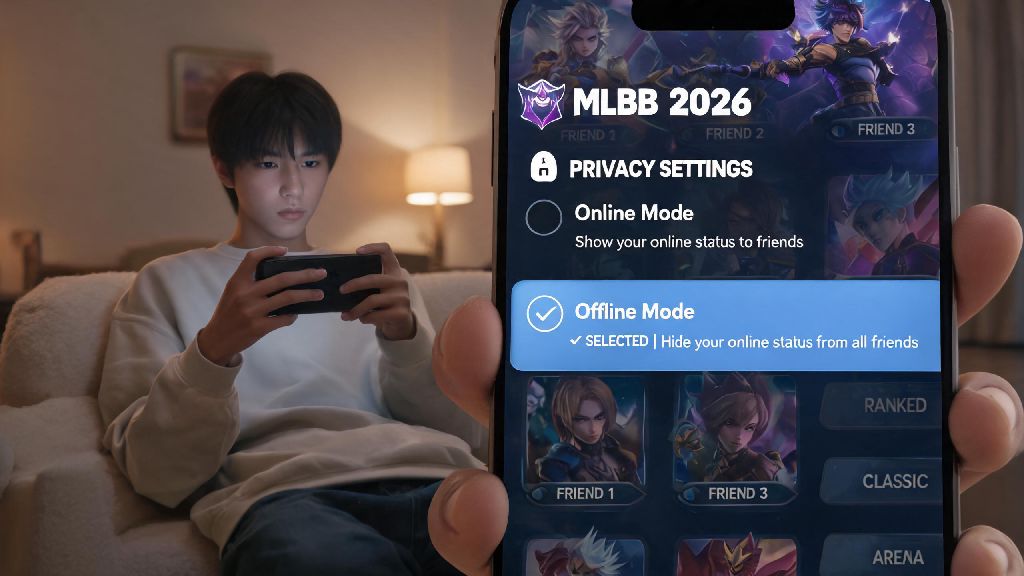
If you’ve ever logged into MLBB in 2026 just to grind a few solo ranked matches, only to get spammed with 12 group invites from friends who want to run casual brawls when you’re focused on climbing, you’ve probably wondered how to appear offline in mobile legends. The 2026 MLBB patch rolled out a handful of quality of life updates for privacy settings, and the offline toggle is one of the most underused, helpful tools for players who want control over who can see their activity. It’s not a hack, it’s an official feature, and it takes less than 30 seconds to turn on once you know where to look. You also don’t risk any account bans for using it, since it’s built directly into the game’s official settings.
Why Would You Want to Use Offline Mode in MLBB 2026?
Most players assume offline mode is only for people who are avoiding a friend they bickered with in their last match, but it has way more use cases than that. I’ve used it every time I want to test a new meta hero without my regular squad making fun of me for feeding in classic matches, and it’s saved me from having to make up excuses to skip games when I only have 20 minutes to play before work. Some of the most common reasons players toggle this setting on include:
You don’t have to have a “good” reason to use the feature, either. It’s your account, and you get to decide who sees when you’re online, no explanations needed. A lot of players in the 2026 MLBB community have started using it regularly to cut down on the social pressure of playing with others every time they log on. It’s also a great option if you share game account screenshots on social media and don’t want random followers to spam you with invites when they see you online.
Step-by-Step Guide to Appear Offline in Mobile Legends 2026
The 2026 patch moved the privacy settings menu to a more accessible spot, so you don’t have to dig through three different submenus to find the toggle anymore. The steps are identical for both iOS and Android devices, as long as you’ve downloaded the latest version of the game from the App Store or Google Play Store. This is the most reliable way to appear offline in mobile legends without using any third party tools that risk getting your account banned.
First, open Mobile Legends and wait for the main lobby screen to load fully. Tap your profile avatar in the top-left corner of the screen to open your account dashboard. You’ll see a small gear icon in the top-right corner of this dashboard—tap that to open your account settings menu. Make sure you don’t tap the main lobby settings icon by mistake, since that only controls sound and graphic preferences, not account privacy.
From the settings menu, select the “Privacy” tab on the left-hand sidebar. Scroll down until you see the “Online Status” section, and you’ll find a toggle labeled “Appear Offline”. Switch that toggle to the on position, and you’re done. You can back out to the main lobby immediately, and all of your friends will see you as offline, even if you’re actively in a match. The setting saves across devices too, so if you log into your account on a friend’s phone, the offline toggle will stay on unless you turn it off manually.
If you want to double check that it worked, you can ask a friend to check their friends list, or log into a secondary smurf account to see your main account’s status. The setting saves automatically, so you don’t have to toggle it on every single time you log into the game in 2026—you can leave it on permanently if you never want people to see you online. If you ever want to turn it off, just follow the same steps and flip the toggle back to off.
What Limitations Does Offline Mode Have in 2026?
Offline mode isn’t a total invisibility cloak, and there are a few small limits to what it can hide, so you don’t get caught off guard. I learned this the hard way last month when I had offline mode turned on, but joined a friend’s ranked queue by accident, and they could still see I was in the match with them. If you’re looking for how to appear offline in mobile legends so you can hide from specific players, you can also use the block feature alongside offline mode for extra privacy.
First, you will still show up as active to anyone you are currently in a match or team with. If you accept an invite from a friend, they’ll be able to see you’re online for the duration of that team, even if you have offline mode toggled on. That’s intentional, so you don’t accidentally join a friend’s lobby and confuse them by showing up as offline while you’re talking to them in voice chat. Once the match ends and you leave the team, you’ll show up as offline again automatically.
You’ll also still be able to send and receive private messages, and people can still send you friend requests or match invites—you just won’t show up in their online friends list, so they won’t know you’re actively online to see those requests. If you want to block invites entirely, you can toggle that setting in the same privacy menu where you turned on offline mode. That way you won’t get any pop-up distractions at all while you’re playing.
Another small quirk of the 2026 version is that if you link your MLBB account to your TikTok or Moonton social profile, your match activity might still show up there if you have public activity turned on. You can turn that off separately in the social linking settings if you don’t want people to see your matches there either. It only takes a few extra seconds to adjust that setting if you want full privacy.
Troubleshooting Common Offline Mode Issues in 2026
Most players won’t run into any issues with the offline mode toggle, but there are a few common glitches that have popped up with the 2026 patches that are easy to fix. If you’ve toggled the setting on but your friends still say you’re showing up as online, the first fix is to simply restart your game. Most of the time, the setting just hasn’t synced to the server yet, and a quick restart will fix it immediately. You don’t have to clear any data or log out of your account to make this work.
If that doesn’t work, clear your game cache from your device’s app settings. Corrupted cache can make old privacy settings stick even after you’ve changed them, and clearing it won’t delete any of your account data or match progress. For iOS users, you can offload the app and re-download it to clear the cache, and for Android users, you can clear the cache directly from the app info menu in your settings. This fix also works for other common glitches like missing event rewards or stuck loading screens.
If you’re still having issues, make sure you’ve downloaded the latest 2026 MLBB patch. Older versions of the game don’t support the new offline mode toggle, so you’ll have to update the game to access the feature. You can check for updates in the App Store or Google Play Store, and the update only takes a few minutes even on a slow mobile data connection. If you’re using an older device that can’t run the latest 2026 patch, you can still use the old “invisible” status setting that was available in previous versions, though it has fewer features.
The only other common issue is players forgetting that they left offline mode turned on, and then wondering why none of their friends are sending them invites. If you want to turn the feature off, just follow the same steps you used to turn it on, and toggle the switch back to off. It’ll sync immediately, and your friends will see you as online again right away. You can also set a reminder on your phone if you only want to use offline mode for specific play sessions.
At the end of the day, being able to control your online status is one of the best small quality of life features MLBB has added in recent years, and learning how to appear offline in mobile legends can make your 2026 gameplay experience way less stressful. Whether you’re trying to grind ranked without distractions, practice new heroes without judgment, or just take a break from the social side of the game, the offline toggle is a simple, official tool that works perfectly for all of those use cases. You don’t need any third party apps or hacks to use it, and it takes less than a minute to set up the first time you use it. If you haven’t tried it yet, give it a go during your next play session—you’ll probably wonder how you ever played without it.