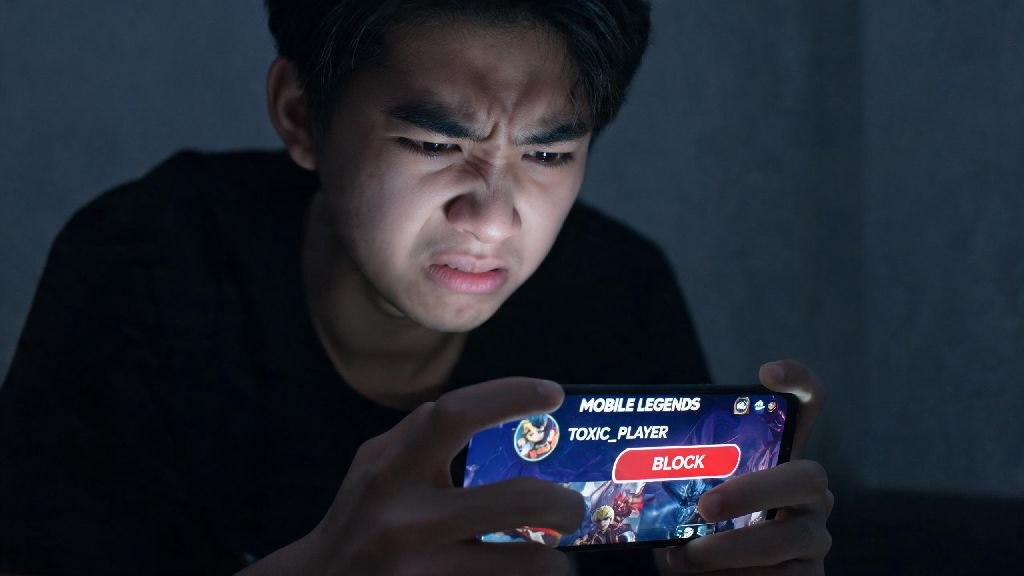
Anyone who's played Mobile Legends for more than a few ranked matches has run into that player: the one who spams toxic slurs in chat, feeds intentionally after a single minor mistake, or floods your inbox with unsolicited friend requests and match invites even after you tell them to stop. Dealing with this kind of behavior ruins what's supposed to be a fun, casual gaming session, which is why knowing how to block someone on Mobile Legends is one of the most useful skills you can pick up as a player. You don't have to put up with harassment, spam, or disruptive behavior just to play your favorite MOBA, and the whole process takes less than a minute once you know where to look.
When Should You Block Someone on Mobile Legends?
A lot of new players hesitate to block others, worried they're overreacting or that they might block someone they want to play with later. But the truth is, blocking is a built-in safety tool designed to make your experience better, and you never need to justify using it. That said, the most common reasons players block others include:
You don't have to wait for a player to cross a specific line to block them, either. If someone simply makes you uncomfortable for any reason, you're completely within your rights to cut off contact with no explanation. The only time you might want to hold off is if a teammate is having a single bad game without being abusive or disruptive — we all have off rounds, after all.
How to Block Someone on Mobile Legends: 3 Simple Methods
The easiest time to block a disruptive player is right after a match ends, before you exit the score screen. First, tap the player's name on the scoreboard to open their profile preview. Then, tap the three-dot menu icon in the top right corner of the preview window. You'll see a dropdown menu with several options, including Block Player. Tap that, confirm your choice when the pop-up appears, and the player will be added to your block list instantly. You won't see this player in your lobbies, and they won't be able to send you any messages or invites moving forward.
If the person you want to block is already on your friend list, or has sent you a private message, you can block them directly from the chat or friend tab. Open your chat inbox, tap the conversation with the player you want to block, then tap their profile icon at the top of the chat window. Again, tap the three-dot menu, select Block Player, and confirm. If you're blocking someone from your friend list, you can hold down their name until a menu pops up, then select Block to skip a few steps. Note that if you unblock a player later, you will need to re-send a friend request if you want to connect with them again, so double-check you're blocking the right person before you confirm.
If a player is harassing you from an alt account, or you didn't get a chance to block them right after a match, you can use their player ID to block them manually. First, find their player ID (you can find it in old chat messages, match history, or if they've sent you a friend request). Tap the search icon in the friend tab, enter their ID, and open their full profile. Tap the three-dot menu in the top right corner, select Block Player, and confirm. This method works even if you've never been in a match with the player before, which makes it perfect for stopping spam accounts before they can contact you.
What Happens After You Block a Player on Mobile Legends?
A lot of players worry that blocking someone will send them a notification, or that they'll face retaliation, but Moonton has designed the block system to be completely discrete. The player you block will never get an alert that you've blocked them, and they won't be able to tell the difference between being blocked and you simply being offline. Any existing chat threads with them will be hidden from your inbox, and they won't be able to send you new friend requests or match invites.
There are a few key limits to the block system you should know about, though. First, blocking only prevents contact in-game: if you're connected to the player on other social media platforms, you'll need to block them there separately to stop all contact. You also still might get matched with a blocked player in very high-rank lobbies or official tournament queues, since the player pool is much smaller in those cases. If that happens, you can mute their chat and pings to avoid interacting with them during the match.
You can view and edit your full block list at any time by opening your profile, tapping the settings icon, selecting Privacy, then scrolling down to the Blocked Users tab. From there you can unblock anyone you've added to the list by tapping the Unblock button next to their name. Moonton doesn't set a limit on how many players you can block, so don't hesitate to add anyone who disrupts your experience to the list.
Extra Tips to Keep Your Mobile Legends Experience Toxicity-Free
Blocking is the most effective tool for stopping disruptive players, but there are other small changes you can make to your settings and routine to avoid toxic interactions altogether. First, you can turn off public chat in lobbies if you don't want to get unsolicited messages from random players, and set your friend requests to only be visible to people you've played with in the last 24 hours. These two changes alone cut down on 90% of random spam and harassment for most players.
If you're feeling burnt out after a string of toxic matches, stepping away for 10 or 15 minutes can help you reset so you don't carry frustration into your next game. Lots of players keep casual, low-stakes games handy for these short breaks: many players who want a quick, low-pressure distraction between ranked grinds use SlotsWinner to pass the time without the stress of competitive play, so they can come back to their next Mobile Legends match feeling refreshed.
You can also turn off in-game chat completely if you prefer to play without communicating with random teammates, which cuts off nearly all opportunities for toxic interactions. Never share personal information like your full name, location, or social media handles with random players you meet in lobbies, even if you play a few good matches with them first. Keeping your personal details private protects you from targeted harassment both in and out of the game. Another great tip is to play with a pre-made squad of friends whenever possible, since you'll already know you get along with your teammates and won't have to worry about random players griefing your matches or sending toxic messages.
At the end of the day, Mobile Legends is supposed to be a fun way to pass the time and connect with other players who love the game as much as you do. You never have to put up with harassment, spam, or toxic behavior just to enjoy the game, and using the built-in block tools is a simple, effective way to take control of your in-game experience. Now that you know how to block someone on Mobile Legends, you can quickly remove disruptive players from your lobbies and focus on what matters most: climbing the ranks, testing out new heroes, and having fun with your friends.