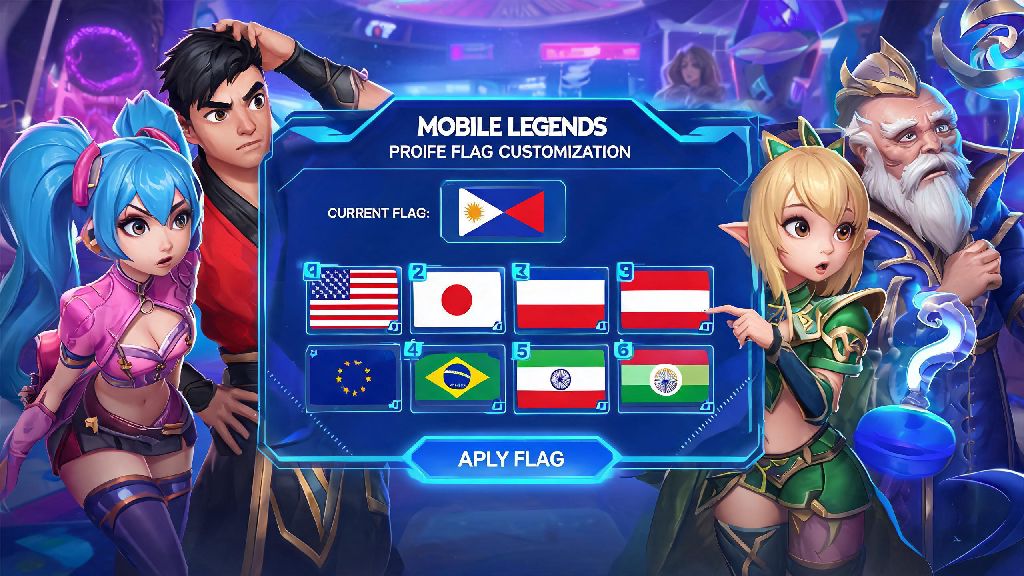
I’ve been an avid Mobile Legends player for over four years, and one of the most common questions I see pop up in squad group chats and community forums is how to change flag in Mobile Legends. A lot of players assume it’s just a quick cosmetic toggle, but the process is tied to your account’s region settings, so it’s easy to run into errors if you don’t know the rules first. Whether you moved to a new country recently, want to compete on your local region’s leaderboards, or just want your profile to accurately represent where you’re from, this walkthrough will help you get it done without unnecessary headaches.
What You Need to Know Before You Change Flag in Mobile Legends
Before you jump into the settings to adjust your flag, there are a few key rules you need to be aware of to avoid wasted effort or even account penalties. First, your flag is not just a fun profile decoration – it’s linked directly to your registered match region, which determines what leaderboards you appear on, what region-specific events you can access, and who you get matched with in ranked and classic games. You can only change your MLBB flag once every 30 days, so you want to make sure you’re making a choice you’re happy with before you confirm.
Another critical point to note is that the game verifies your location to approve flag changes, so you can only select a flag that matches the country you’re currently physically located in. A lot of players try to use VPNs to access flags for other regions to get exclusive event rewards or compete on less competitive leaderboards, but that’s a violation of MLBB’s terms of service. Using a VPN to fake your location for a flag change can result in a permanent account ban, so it’s never worth the risk, even if you see other players claiming they got away with it.
Step-by-Step Process to Change Your Flag in Mobile Legends
The actual process of updating your flag is pretty straightforward once you know where to look, and it works almost identically on both Android and iOS devices. First, make sure you’re logged into the correct MLBB account, and that you’ve granted the game access to your device’s location services. Make sure you have granted MLBB location access before starting the process, or the location verification step will fail immediately, and you’ll have to restart.
Follow these steps in order to complete the change:
1. Open the Mobile Legends app and wait for it to load fully to the main home screen. Tap your profile avatar in the top left corner of the screen to open your personal profile page.
2. Look for the small gear icon located right next to your in-game name, just below your profile level badge. Tap this icon to open your account settings menu.
3. Scroll through the settings options until you see the “Region and Language” tab, then tap to open it. You’ll see your current flag displayed next to your registered region name at the top of this page.
4. Tap the small pencil edit icon next to your current flag. The game will automatically run a quick location scan to confirm your current physical location.
5. Once the scan is complete, you’ll see a list of eligible regions matching your location. Select the country you want to represent, then tap “Confirm” to save your choice.
6. Close and restart the Mobile Legends app to make sure the changes apply fully. You’ll see your new flag displayed on your profile immediately after you log back in.
If the scan doesn’t pick up your location right away, try switching from Wi-Fi to mobile data, as public or shared Wi-Fi networks sometimes mask location data to protect user privacy. You don’t need to pay for any premium features or submit support tickets to make this change, as long as your location is verifiable.
Common Issues You Might Face When Changing Your MLBB Flag
Even if you follow all the steps correctly, it’s normal to run into small snags when you try to update your flag, especially if you’ve never done it before. Most of these issues have simple fixes, and you won’t need to contact support unless you run into a rare account-specific error.
A lot of players also worry that they have to change their flag if they’re traveling for work or vacation, but that’s not the case at all. The game will only prompt you to update your region if you’re located in a new country for more than 14 consecutive days, and you can decline the prompt if you’re just visiting. You are not required to change your flag if you are only traveling temporarily, so you can keep your home country flag even if you’re out of the country for a few weeks.
Is Changing Your Flag in Mobile Legends Worth It?
Before you go through the process of updating your flag, it’s worth weighing the pros and cons to make sure it’s the right choice for you, especially since you’ll be locked into that region for 30 days after you make the change.
The biggest benefits of updating your flag to match your current location are tied to gameplay quality and community access. When you’re registered to your local region, your queue times for ranked and classic games will be much shorter, because you’ll be matching with players who are active during your time zone. You’ll also be eligible to compete on your local region’s leaderboards, and join region-exclusive squad tournaments that only allow players from that country to participate. If you compete in ranked play regularly, matching with local players will drastically reduce lag and disconnects during matches, which can make a huge difference in your win rate, especially in high rank games where every millisecond counts.
That said, there are a few small downsides to consider. If you already have a rank on your old region’s leaderboard, you’ll lose that progress when you switch regions, and you’ll have to climb the new region’s leaderboard from scratch. You also might miss out on region-specific events that were available in your old country, though most global events are available to all regions regardless of your flag setting. I switched my flag last year when I moved from Singapore to Malaysia, and while I was sad to lose my top 100 Kagura rank on the SG leaderboard, the 70% shorter queue times and almost zero lag during ranked games made the tradeoff totally worth it for me.
At the end of the day, customizing your MLBB profile to match where you live makes the whole gaming experience more fun and connected, whether you’re playing for fun with local friends or competing in ranked to climb the leaderboards. Learning how to change flag in Mobile Legends is a simple process as long as you follow the official rules, avoid risky shortcuts like VPNs, and double check your location permissions before you start. If you run into an issue that isn’t covered in this guide, you can always submit a ticket to MLBB’s in-game support team for further help, and they’ll usually get back to you within 24 hours.