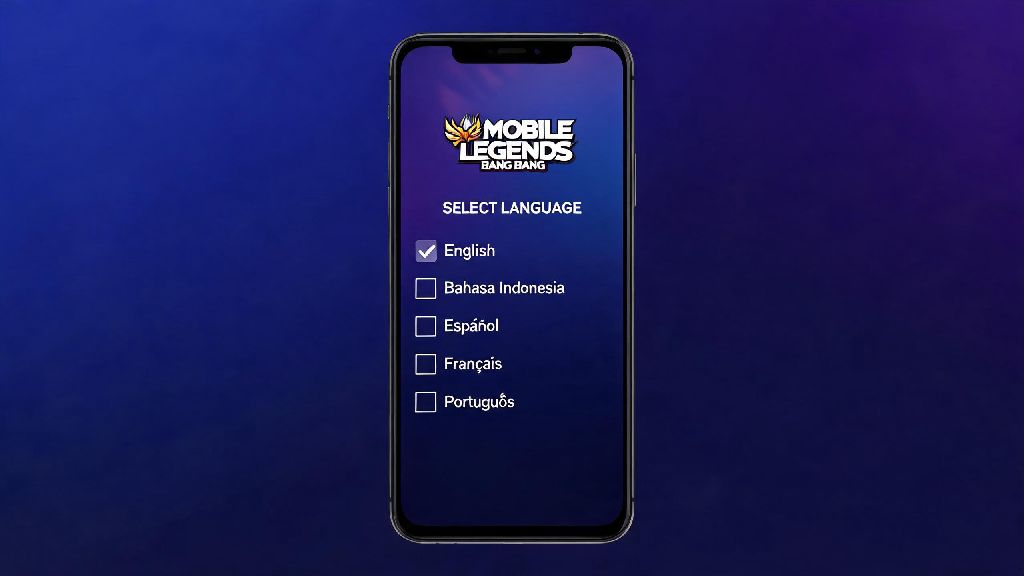
I’ve had dozens of friends DM me panicking after they downloaded a test version of Mobile Legends from a Southeast Asian server, only to find the entire interface in Indonesian with no obvious way to switch back. If that’s ever happened to you, or you just prefer playing in your native language instead of the default English, knowing how to change language in Mobile Legends is a basic skill that will save you hours of squinting at unrecognizable text and missing out on limited-time event rewards. It’s a surprisingly simple process, but there are a few common glitches and hidden rules most players don’t know about until they run into them.
Step-by-Step Process to Change Language in Mobile Legends
The official in-game process takes less than 2 minutes to complete, even if you can’t read the current default language of your interface. First, open Mobile Legends and wait for the main lobby to load fully. Look for the small gear icon in the top right corner of the screen, which is universal across all language versions of the game, so you don’t need to read any text to find it. Tap the gear icon to open the settings menu.
Once you’re in the settings menu, scroll down until you see a tab marked with a globe icon, or a list of language names written in their native script. Even if your entire menu is in Korean or Thai, you’ll see entries for “English” written in English, “Español” written in Spanish, and so on, so you can easily pick your desired language even if you can’t read the rest of the menu. Tap the language you want to use, then confirm the pop-up prompt that appears.
The game will prompt you to restart to apply the changes. Remember to save any ongoing draft builds or custom message sets before confirming the restart, as any unsaved changes will be lost when the game reboots. Once the game loads back up, your entire interface, quest descriptions, and most hero voice lines will be in your chosen language. Keep in mind that some rare event-specific text or newly released hero voice lines may take a few days to be localized, so they may appear in English temporarily even after you switch.
Common Issues You Might Face When Adjusting MLBB Language Settings
Most of the time, the process works perfectly on the first try, but there are a few common bugs that many players run into, especially if they play on cross-region servers or have an outdated version of the game. The most frequent complaint is that the language option is greyed out and unclickable. This usually happens if you’re on a restricted regional server (like the official China server, which only supports Simplified Chinese by default) or if you have a pending game update that you haven’t installed yet. Updating your game to the latest version will usually fix this issue immediately.
Another common problem is that your language settings reset to the default every time you close and re-open the game. This is almost always caused by corrupted temporary cache files stored on your device, or because you’re playing on an unbound guest account that doesn’t save preference changes. We’ve tested a handful of simple fixes that work for 90% of players facing this glitch:
A lot of players who switch regions to unlock exclusive skins or event rewards often run into language reset bugs, especially if they use third-party tools to access cross-region content. Many of these players also use in-game gifting features, and even casual minigames to pass the time while waiting for queue pops — Share Slots is a popular pick for quick, low-stakes fun between matches that doesn’t require you to change your language settings to play. If your language keeps resetting after every game launch, try clearing your game cache before adjusting settings again, that usually fixes the bug tied to corrupted temporary files.
If you notice that your interface text changed but your hero voice lines are still in the old language, don’t panic. Voice packs are separate downloads from the base interface language pack, so you’ll need to go to the “Voice” tab in settings to download the matching voice pack for your new language. This only takes a minute or two over Wi-Fi, and you won’t have to re-download it if you switch back to that language later.
Should You Change Your In-Game Language for Cross-Region Play?
Many players switch their game language when playing with friends from other countries or competing in cross-region tournaments, and there are both pros and cons to making this change. On the plus side, switching to the local language of the server you’re playing on will let you understand region-specific event descriptions, local team chat messages, and customer support responses far more easily. If you’re playing on a Latin American server, for example, switching to Spanish will help you pick up on limited-time event rewards you might have otherwise missed if you were playing on default English.
If you play with a consistent group of friends who speak a different language, you can switch between language settings in 2 minutes flat with no long loading times, as long as you already downloaded the required language pack once. Changing your language settings will never affect your matchmaking rank, skin ownership, account progress, or in-game currency balances, so you don’t have to worry about losing anything when you switch back and forth.
There are a few small downsides to consider, though. Most popular MLBB tier lists, build guides, and patch note breakdowns are published in English first, so if you switch to a less widely supported language, you may have to wait a few days for translated versions of these resources to come out. You also won’t be able to use English-language search functions for in-game items if your interface is set to another language, which can be a minor hassle if you’re used to searching for specific emblems or skins by their English names.
Tips to Customize Your MLBB Experience Beyond Language Settings
Once you’ve got your language settings sorted, there are a handful of other small tweaks you can make to tailor the game to your preferences. You can download up to 3 different language packs at once to switch between them quickly without re-downloading files every time, which is perfect if you play with different groups of friends who speak different languages. You can also mix and match interface and voice settings, for example keeping your interface in English but using Japanese hero voice lines if you prefer those performances.
You can also adjust your chat filter settings to block offensive messages in all of the languages you play in, which is a useful feature if you regularly play with random teammates from across the globe. The game also lets you customize your quick chat messages in your chosen language, so you can set up pre-written messages for common callouts like “ retreat” or “push the turret” that align with the language your team uses.
Avoid using unapproved third-party language packs that you might find on fan forums or social media, even if they promise custom voice lines from your favorite content creators or anime characters. These packs modify core game files, which Moonton’s anti-cheat system flags as unauthorized tampering, and you could end up with a permanent account ban for using them. Stick to the official language packs available directly in the in-game settings menu to keep your account safe.
At the end of the day, figuring out how to change language in Mobile Legends is a small tweak that makes a huge difference to your gameplay experience, whether you’re a casual player who just wants to understand quest descriptions or a competitive player who needs clear communication with your team. Don’t be afraid to test different language settings to find what works best for you, and don’t forget to save your preferences to your bound account so you don’t have to redo the process if you switch devices or reinstall the game.