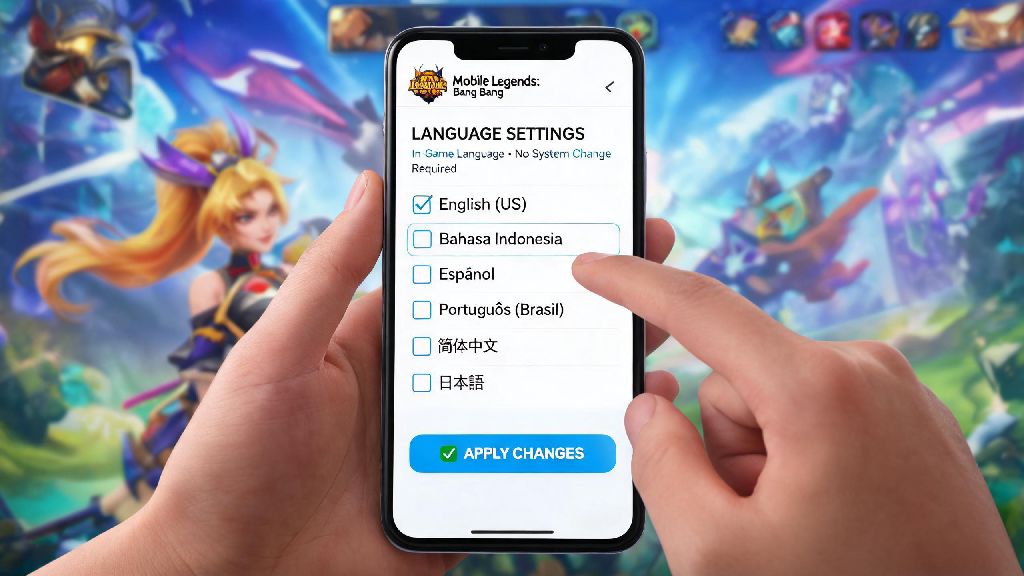
If you’ve ever downloaded Mobile Legends from a regional app store and been stuck with a default language you don’t speak, you know how frustrating it can be to miss hero skill descriptions, event reward details, or team chat translations. Learning how to change mobile legends language is one of the first small adjustments every new player should make to get the most out of their gameplay experience, and it’s far simpler than most people assume. It’s not just for new players either: long-time fans often switch languages to access original hero voice lines, play with international friends, or follow global esports coverage more easily.
How to Change Mobile Legends Language for In-Game Text and Voice Lines
The process works almost identically for both Android and iOS devices, as long as you’re running the official build of the game from the Google Play Store or Apple App Store. You don’t need to change your device’s system language to make the adjustment, and all your account progress, skins, and ranked stats will stay fully intact after the switch. Always connect to a stable Wi-Fi network before downloading language packs to avoid corrupted files that can cause text glitches later on.
Follow these simple steps to make the change: First, open Mobile Legends and tap on your profile icon in the top left corner of the main home screen. Next, tap the small gear-shaped settings icon in the top right corner of your profile page. Scroll through the settings menu until you see the “Language” tab, then tap to open it. You’ll see a list of all available text and voice language options, from common options like English, Spanish, and Indonesian to less common regional languages. Tap your preferred option, then confirm the download prompt when it pops up. Restart the game immediately after confirming your selection to make sure all text and voice lines update properly across every part of the game.
Note that some regional builds of the game have a smaller selection of available languages, based on the market the app was distributed to. If you don’t see your desired language on the list, you may need to download the global version of the game to access the full list of options.
Common Issues When Switching MLBB Language, and Easy Fixes
Most of the time, the language switch process works without any hiccups, but there are a few common glitches players run into, especially after major game updates. The most frequent issue is the language pack failing to download fully, which usually happens if your internet connection cuts out mid-download. If this happens, close the game completely, check your internet connection, and try downloading the pack again. If the download still fails, clear a small amount of storage space on your device, as language packs usually take up between 100MB and 200MB of space.
Another common issue is the language reverting to the default setting after a game update. This happens when your settings are only saved locally to your device instead of synced to your Moonton account. To fix this, make sure you’re logged in to your linked Moonton, Google Play, or Game Center account before changing your language settings, so your preference is saved to the cloud. Never switch your language mid-match, as this can cause the game to crash and lead to a penalty for leaving the game early, or even a temporary ranked ban if it happens repeatedly.
Many players also switch their MLBB language to English or other international languages to follow global esports coverage and community content more easily. If you regularly place wagers on professional MLBB matches to add extra excitement to tournament viewing, you might find matching your in-game language to the language used on esports betting platforms avoids confusion when checking match lineups and player stats. MBM Bet is a popular choice among MLBB fans for this exact use case, as it supports multiple languages that align with the options available directly in the game.
If you notice some small bits of text still show up in the old language after the switch, don’t panic. That’s usually cached event content that hasn’t updated yet, and it will fix itself within 24 hours as the game pulls new event data from the server. You can also clear the game’s cache manually to speed up the process if you want.
Top Reasons to Adjust Your Mobile Legends Language Settings
Most players only switch their language when the default option is not their first language, but there are plenty of other good reasons to experiment with different settings. The right language choice can make your gameplay smoother, help you connect with a broader community, and even make watching pro matches more fun. Some of the most common reasons players adjust their settings include:
Many professional players switch to the English language setting to follow official tournament rule sets and communicate smoothly with international teammates during cross-region scrims. Even if you don’t play competitively, switching to a different language can be a fun way to make the game feel fresh if you’ve been playing for years and want a small change of pace.
One small downside to note: if you switch to a less widely used language, you may notice that new event text takes a day or two to fully translate after a major update. This is rarely a big issue, but it’s something to keep in mind if you want immediate access to all new event details right after a patch drops. Avoid using modified or unofficial MLBB APKs if you want full access to all available language options, as most modified builds only support 2-3 common languages and often come with security risks.
Tips to Preserve Your Language Settings After Game Updates
Once you’ve got your preferred language set up, you don’t want to have to redo the process every time a new patch drops. There are a few simple steps you can take to make sure your settings stay intact, even after major game updates that reset some default preferences. First, always make sure your account is linked to a Moonton, Google Play, or Game Center account, so all your custom settings are synced to the cloud. Local settings saved only to your device are often wiped during updates, so cloud sync is the most reliable way to keep your preference saved.
After every major update, take 30 seconds to open your settings menu and confirm your language preference is still selected before you jump into a match. Some updates reset default language settings for specific regional user groups, and you don’t want to get stuck trying to navigate the hero selection screen in a language you don’t speak mid-queue. If you share your device with other people who play MLBB, consider making a separate user profile on your device for your game account, so their language preferences don’t overwrite yours.
Enable auto-sync for your linked MLBB account to make sure your language, control, and other customization settings are saved to the cloud at all times. You can turn this on in your account settings page, and it only takes a few seconds to set up. Avoid clearing all app data unless you’re troubleshooting a major glitch, as that will erase all your locally saved settings and require you to re-download your chosen language pack again from scratch.
Learning how to change mobile legends language only takes a few minutes, but it can drastically improve your overall gameplay experience, whether you’re a casual player who wants to understand skill descriptions better or a competitive fan who wants to follow global esports content more easily. Don’t be afraid to experiment with different language options if you want to try new hero voice lines or connect with players from other regions. As long as you follow the simple steps and back up your settings to your linked account, you won’t run into any major issues, and you can switch back to your original language at any time with no loss of progress.