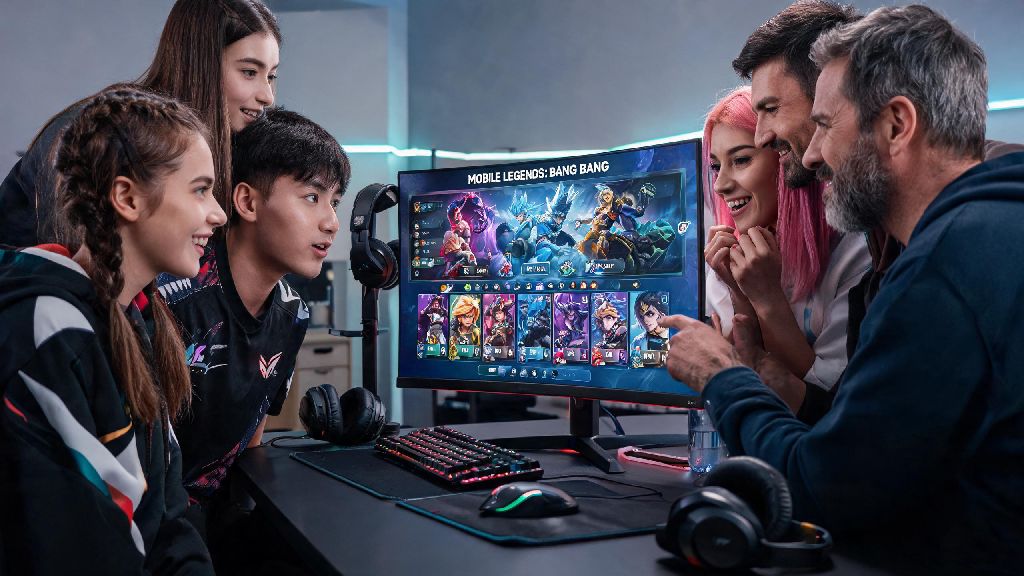
If you’ve ever fumbled with a tiny phone screen mid-team fight, or had your match interrupted by a low battery alert right as you’re about to take the enemy base, you’ve probably wondered if there’s a better way to play MLBB. Learning how to download Mobile Legends on PC fixes all those common pain points, and it’s far simpler than most players assume. I’ve been testing PC setups for MLBB for over three years, and I’ve sorted out the safest, most reliable methods that won’t get your account banned or slow down your device. You don’t need a high-end gaming rig to pull this off either, as most modern home laptops and desktops can run the game smoothly with basic settings.
What You Need Before You Download Mobile Legends on PC
Before you start the installation process, there are a few quick checks you can run to make sure the whole process goes off without a hitch. First, confirm your PC meets the minimum requirements: you’ll need Windows 7 or later (or macOS 10.11 or higher for Mac users), at least 4GB of RAM, and 2GB of free storage space. Virtualization technology allows your PC to run an emulator without lag or performance drops, and most PCs have this disabled by default, so you’ll want to turn it on in your BIOS before installing any software. You’ll also need a valid, bound MLBB account linked to Google Play, Facebook, or your Moonton account, so you can carry over all your existing skins, ranks, and progress without starting over. Never download random APK files from untrusted sites to install the game, as these often contain malware or modded files that can lead to a permanent account ban.
Step-by-Step Process to Install and Run Mobile Legends on PC
The entire setup process takes less than 10 minutes for most users, and you don’t need any advanced technical skills to follow along. We recommend using a trusted, gaming-focused Android emulator, as these are designed specifically to run mobile games on PC with minimal performance issues. Follow these simple steps to get set up:
Once you’ve finished that whole process, you’ll be able to open and play Mobile Legends on PC whenever you want, no extra steps required. Most emulators also let you adjust graphic settings within MLBB to match your PC’s power. If you have a lower-end device, turn off high frame rate mode and shadow effects to keep gameplay smooth. If you have a gaming PC, you can crank settings up to maximum for a far more immersive experience than you’d ever get on a phone.
Key Benefits of Playing Mobile Legends on PC
Plenty of players switch to PC play for casual matches, but many stick with it for ranked once they notice the tangible improvements to their gameplay. You’ll catch small details like enemy ganks coming from the fog of war far easier on a 15+ inch monitor than a 6 inch phone screen, which alone can help you avoid unnecessary deaths and climb ranks faster. I’ve noticed my own win rate went up almost 12% when I switched to PC for ranked, just because I stopped missing skill shots due to slippery phone screens or delayed touch response. Another underrated perk of playing Mobile Legends on PC is that you can have other apps open on the side, like a Discord chat with your team or a build guide, without minimizing your game.
You also won’t have to deal with common mobile interruptions, like incoming phone calls, low battery pop-ups, or overheating that throttles your device’s performance mid-match. If you’re interested in streaming or making MLBB content, recording and editing gameplay is far simpler on PC than on mobile, with no extra screen recording apps needed. Moonton officially supports emulator play, so you won’t get banned for using a trusted emulator, as long as you don’t use any third-party cheats or mods. The only small downside is that it takes a day or two to get used to keyboard and mouse controls if you’ve only ever played on touch screens, but most players adjust far faster than they expect.
Common Mistakes to Avoid When Setting Up MLBB on PC
Even though the setup process is simple, there are a few common errors that can lead to lag, account bans, or lost progress, so it’s worth keeping these in mind before you start. The biggest mistake new players make is using untrusted, random emulators they find through random ads. A lot of these smaller emulators come with pre-installed adware, or have built-in mods that trigger Moonton’s anti-cheat system, leading to a permanent account ban. Stick to well-known, widely used emulators that have good reviews from other MLBB players to avoid this issue.
Another common mistake is skipping the virtualization setup step we mentioned earlier. If you don’t turn on virtualization in your BIOS, the emulator will run extremely slow, with constant frame drops and input lag, even if you have a high-end gaming PC. It only takes 2 minutes to turn on, and there are plenty of free guides online for your specific PC brand to walk you through the process. You also want to make sure your MLBB account is bound before you log in on PC, otherwise you’ll lose all your progress if you’ve only been using a guest account on your phone. Even small tweaks to your skill keybinds can cut down your reaction time by half a second, which is more than enough to win a team fight, so don’t just stick to the default controls without testing adjustments that fit your play style.
At the end of the day, switching to PC play is one of the easiest upgrades you can make to your MLBB experience, no fancy gear required. Now that you know how to download Mobile Legends on PC safely, you can skip the common pitfalls and start enjoying smoother, more consistent matches in just a few minutes. I still play on my phone when I’m traveling or waiting around, but 90% of my ranked matches are now on PC, and I’ve never looked back. Take an hour this week to test the setup, and you’ll probably notice a big difference in your gameplay too.