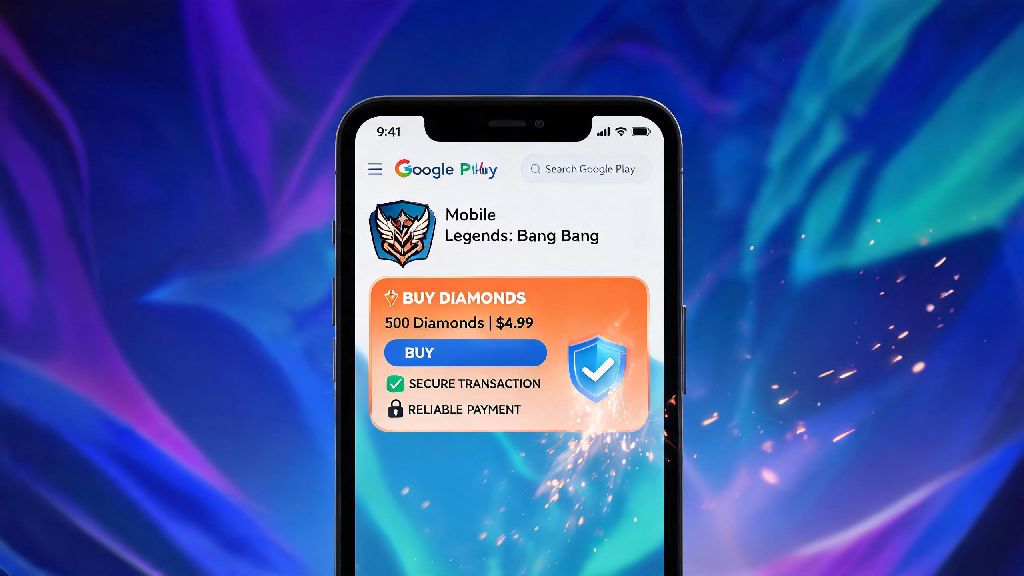
We’ve all been there: a limited-edition skin for your main hero drops, or an event with exclusive rewards is ending in a few hours, and you don’t have enough diamonds to grab what you want. A lot of players turn to random third-party sellers for cheap diamonds, only to end up with banned accounts or missing purchases. That’s why the official method is always the safest bet, and we’re breaking down how to buy diamonds in Mobile Legends using Google Play in this no-fluff guide. This method works for all Android users, and comes with built-in protections you won’t get from unlicensed sellers.
Why Use Google Play to Buy Mobile Legends Diamonds?
You might be wondering why you should use Google Play instead of cheaper third-party sites that advertise 30% or more off diamond purchases. The short answer is security and reliability, both for your account and your money. Purchases through Google Play are 100% recognized by Moonton’s support team, so if you ever have an issue with missing diamonds or a failed transaction, you have a clear paper trail to get the problem fixed fast. Third-party purchases, on the other hand, violate Moonton’s terms of service, and you could get your account permanently banned with no way to appeal. You also get access to Google Play’s built-in purchase protection, which covers unauthorized charges if your account is ever compromised. Another perk is that every purchase you make earns Google Play Points, which you can redeem for credit to use on future diamond top ups, effectively giving you a small discount on every purchase you make.
Step-by-Step Process to Buy Diamonds in Mobile Legends Using Google Play
The actual purchase process is pretty straightforward, but there are a few key checks you should do first to avoid mistakes. First, make sure your Google Play account has a valid payment method linked: you can use a credit or debit card, Google Play gift card balance, carrier billing, or even PayPal in most regions. Next, open your Mobile Legends app and make sure you are logged into the account you want to add diamonds to. Tap the diamond icon in the top right corner of the main screen, which will take you to the purchase page. Select the denomination of diamonds you want to buy, ranging from the smallest 11 diamond pack up to the largest 6040 diamond pack for big spenders. Tap the “Buy” button next to your selected pack, and you will be redirected to the Google Play payment confirmation screen. Confirm your payment method, authenticate with your fingerprint, face ID, or Google account password, and wait for the transaction to process. Before you hit that final confirm button, there are a few key things to double check:
Common Issues and Fixes for Google Play Diamond Purchases
Even with a seamless process, you might run into a few hiccups now and then, most of which are easy to fix on your own. The most common issue is a declined payment, which usually happens if your payment method has insufficient funds, your billing address doesn’t match the one on file with your bank, or your card has a temporary hold on online purchases. If this happens, double check your payment method details, or switch to a different method like a Google Play gift card to complete the purchase. Another common issue is missing diamonds after a confirmed payment. This usually happens if you have a spotty internet connection, or if you accidentally switched to a guest account before making the purchase. First try closing and reopening the game to refresh your account data, and if that doesn’t work, submit a support ticket to Moonton with a screenshot of your Google Play order receipt. Accidental purchases are also fairly common, especially if kids have access to your device. You can request a refund through Google Play within 48 hours of the purchase, as long as you haven’t spent any of the diamonds from the transaction. Refund requests for diamonds you have already spent will almost always be rejected by both Google and Moonton, so it’s a good idea to set up purchase authentication on your Google Play account to prevent accidental charges.
Tips to Maximize Value When Buying Diamonds via Google Play
Buying diamonds through Google Play is already the safest option, but there are a few easy ways to get more value for your money every time you top up. First, wait for in-game bonus events before you buy. Moonton regularly runs events where you get 10% to 50% extra diamonds for free when you purchase specific denominations, so holding off for a week or two until one of these events runs can get you way more diamonds for the same price. You should also make sure you have Google Play Points enabled, as every dollar you spend earns points that you can redeem for Google Play credit, which you can use to cover part or all of your next diamond purchase. Keep an eye out for official Google Play promotions too, like cashback offers on in-game purchases, or discounted Google Play gift cards from major retailers like Amazon or Walmart. These discounts can add up to hundreds of extra diamonds a year if you top up regularly. Never share your Google Play account or Mobile Legends account details with anyone offering discounted diamonds, no matter how good the deal sounds. These are almost always scams that will steal your account, your payment information, or both, and you won’t have any way to get your account or money back.
At the end of the day, you don’t have to cut corners to get the Mobile Legends diamonds you want for skins, heroes, or event passes. Taking the time to learn how to buy diamonds in Mobile Legends using Google Play saves you the stress of dealing with scams, account bans, and missing purchases down the line. I’ve used this method for over three years to top up for everything from battle passes to limited collab skins, and I’ve never had an issue that took more than a single support ticket to fix. If you run into any snags during your purchase, just refer back to the troubleshooting tips we shared earlier, and you’ll be back to playing in no time.