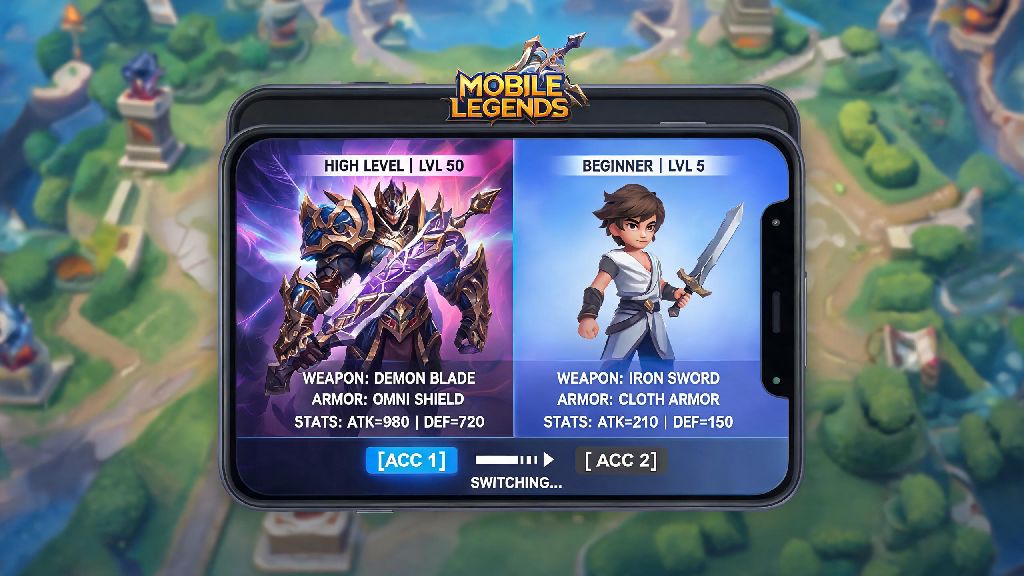
Sharing a phone with a younger sibling who’s obsessed with their own MLBB ranked grind? Or do you run a smurf account to practice new heroes without tanking your main rank? Whatever your reason, knowing how to change account on Mobile Legends saves you hours of frustration trying to recover lost progress or fix glitchy login screens. I’ve messed up this process enough times over the years to know exactly what works, what doesn’t, and what mistakes to avoid to keep all your profiles intact.
How to Change Account on Mobile Legends for Both Android and iOS
The process is almost identical across both operating systems, but there are a few small differences to note depending on what login platforms you use. Before you do anything, there are a few non-negotiable pre-checks to run first to make sure you don’t lose any of your hard-earned skins, ranked points, or event rewards.
Once you’ve checked all those boxes, open MLBB and tap on your profile icon in the top left corner of the main screen. Next, tap the “Account” tab on the left side menu, then select “Switch Account”. You’ll see a list of all linked login platforms; tap the one connected to the account you want to access, enter your credentials, and wait for the game to reload. Link all your accounts to a verified Moonton profile first if you can, because it’s the most reliable login method that works across all devices and platforms, no matter if you switch from Android to iOS later.
If you’re using an iOS device, you might get a pop-up asking for permission to access your Apple ID or Game Center profile. Tap allow, and the game will automatically pull up the linked account. For Android users, you might get a prompt to select which Google Play account you want to use if you have multiple saved on your device. The whole process takes less than 30 seconds if you have your login info ready.
Common Mistakes to Avoid When Switching Mobile Legends Accounts
Even if you follow the steps perfectly, small mistakes can cost you weeks or even months of progress if you’re not careful. I learned this the hard way when I switched accounts as a new player without linking my main profile first, and lost all my progress on a seasonal event skin I’d grinded 2 weeks to earn.
Never skip linking your account before you try to switch to another profile. If you only use a guest account, all your data is stored locally on your phone, so switching accounts will erase that data permanently with no way to recover it. Linking takes less than a minute, and it’s the only way to make sure your progress is saved to the cloud.
Another common mistake is logging into the wrong social media profile by accident. If you have multiple Facebook or Google accounts saved on your phone, double check that you’re selecting the right one before you confirm the login. You don’t want to accidentally load a random old account you forgot about, or worse, overwrite progress on a profile you share with a friend.
Avoid switching accounts on public Wi-Fi if you can. Unstable connections can interrupt the login process, leading to corrupted data or temporary account locks. If you have to switch when you’re out, use your mobile data instead to make sure the process goes smoothly.
How to Fix Login Errors When You Change Your Mobile Legends Account
Even if you do everything right, you might run into the occasional login error. Most of these are easy to fix in a minute or two, no support ticket required. The most common error is the “account not found” pop-up, which usually happens when you select the wrong login platform for the account you’re trying to access.
For example, if your smurf account is linked to Facebook but you tap Google Play when you try to switch, the game won’t find the account. Double check what platform the secondary account is linked to, and try again. Clear only the app cache if you face login glitches, not the app data, because clearing app data will erase all locally saved settings and might delete guest account progress if you have any. To clear cache, go to your phone’s app settings, find MLBB, tap storage, then select clear cache.
If you get a “too many login attempts” error, wait 15 to 30 minutes before trying again. Moonton has anti-hack measures that temporarily lock login attempts if you try to switch accounts too many times in a short window. If you still can’t log in after an hour, make sure you’re running the latest version of the game, because outdated versions often have compatibility issues with newer login systems.
If you accidentally log into the wrong account and notice your progress is missing, don’t panic. Log out immediately, double check your login credentials, and try again. If you still can’t find your account, contact Moonton support within 7 days of the error, and they can help you recover your profile as long as you can provide proof of ownership, like purchase receipts or account creation details.
Tips for Managing Multiple Mobile Legends Accounts Smoothly
If you run more than two accounts, there are a few small hacks that make switching way less of a hassle. First, use a separate login platform for each account if you can. For example, link your main account to your personal Google Play, your smurf to a separate Facebook profile, and your fun casual account to a Moonton ID. That way you never mix up which platform to select when you switch.
Don’t switch accounts more than 3 times per hour, as we mentioned earlier, to avoid temporary login restrictions. Moonton’s system flags frequent account switches as potential account selling or hacking activity, so keeping switches to a minimum keeps your accounts safe from flags.
If you have a lot of accounts, write down which platform each one is linked to in a note on your phone, so you don’t have to guess every time you want to switch. You can also use the game’s built in account nickname search to double check you’re logging into the right profile before you confirm the login.
Another small tip: if you share a phone with someone else, turn off auto-login for all accounts. That way no one accidentally logs into your main account and messes with your ranked progress or spends your saved diamonds. It only adds an extra 2 seconds to the login process, but it saves you a lot of frustration later.
At the end of the day, switching between profiles doesn’t have to be a stressful process if you take the right precautions first. Now that you know how to change account on Mobile Legends safely, you can jump between your main ranked account, casual smurf, or even a region-specific account to play with friends overseas without worrying about lost progress or glitchy logins. Just remember to link all your accounts first, double check your login credentials, and avoid switching too frequently, and you’ll have no issues keeping all your profiles running smoothly.